Aplicado




Acerca de
Discover these 10 incredible Presets for Luminar Neo that will transform your images captured on family vacations. Your vacation time with your family is precious and these Presets will help you create stunning images from those special moments you captured on camera. These Presets are designed for some of the most popular types of family vacations, often with subtle vignettes to isolate your portraits and relying on some of Luminar Neo’s AI technologies, such as Face AI, Skin AI and Accent AI to pick out the fine details of your subjects. Use these Presets as a single-click edit, or use them to jumpstart your custom edit. Turn your snaps into works of art with these Presets which are ideal for raw files. Time to try them out on your photos!
Compatibilidad

Consigue fotos como estas
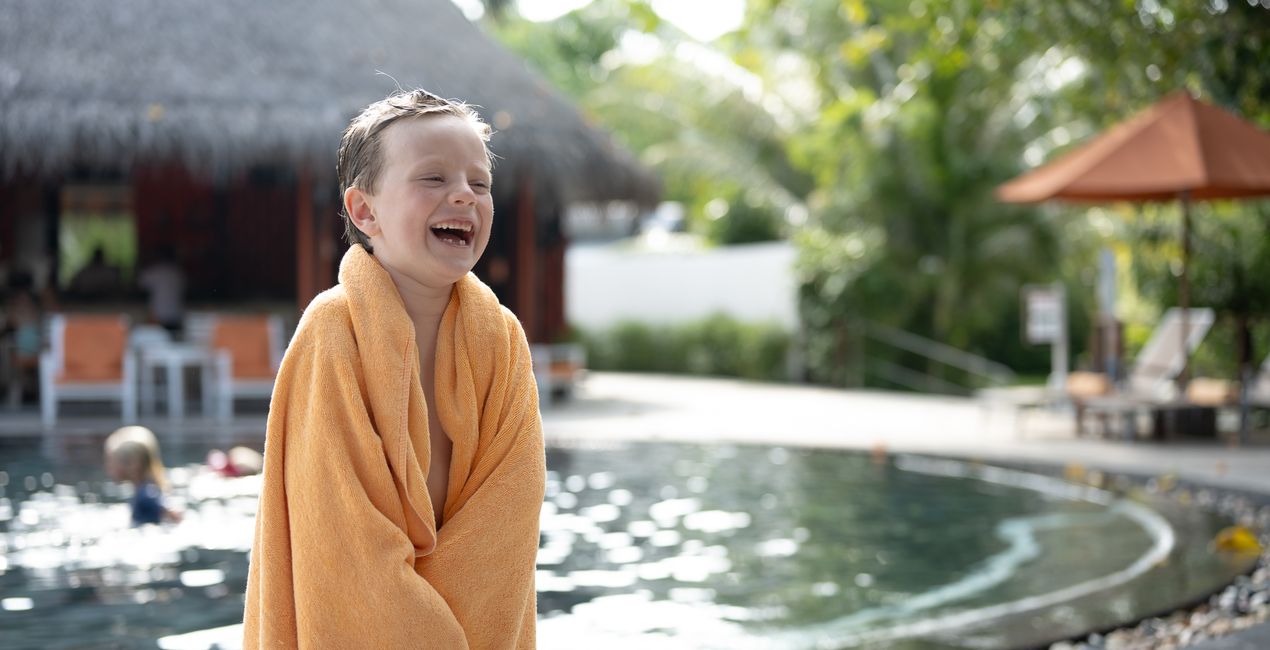
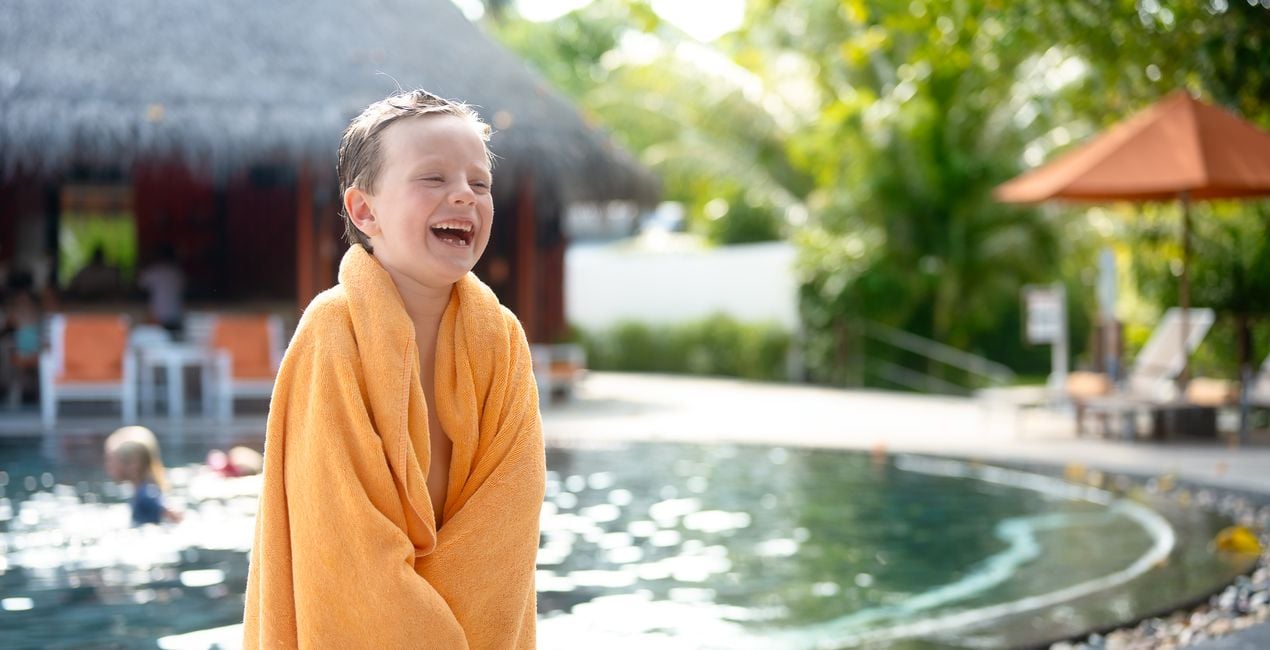
Con los archivos RAW proporcionados, practicarás fácilmente los consejos de retoque y aprenderás a conseguir fotos como estas.

 >
>

 >
>
 >
>
 >
>

 >
>
 >
>
La historia
You'll find 10 Presets in this pack
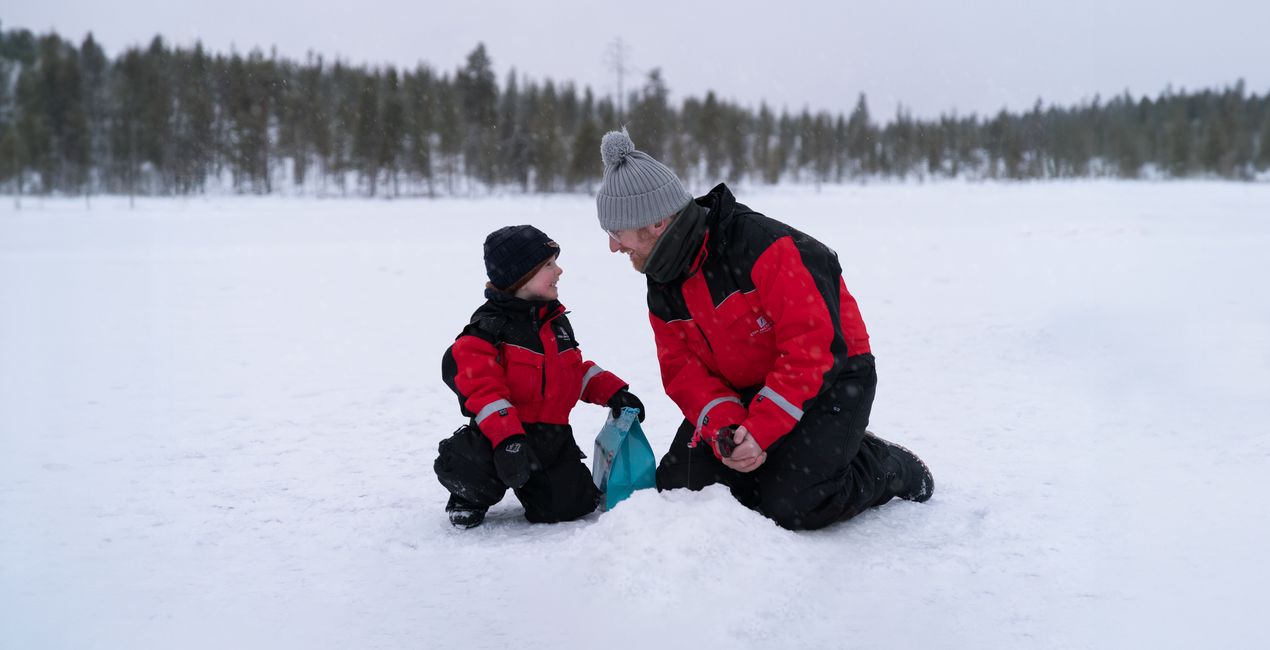
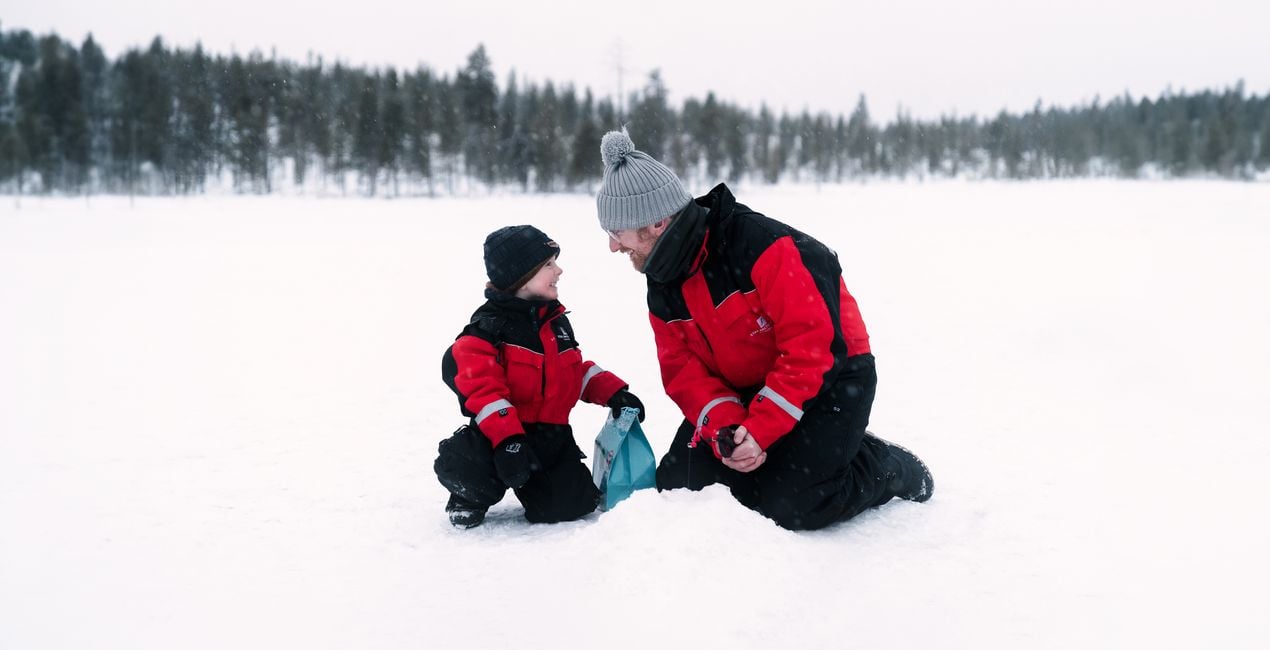
Snow Fun: A high-key desaturated look with a subtle glow to enhance the pristine beauty of snow.
Tropical Beach: Vibrant color, exposure, and contrast detail for well-lit, sunny beach portraits.
Poolside: A bright and dreamy look for underexposed images.
Forest Walk: Cinematic look with an emphasis on greens and earthy tones.
Fall Adventure: Boost of reds and oranges for punchy fall portraits.
Bright Shoot: Dreamy, warm look that calms down harsh shadow contrast for images captured in bright sunlight.
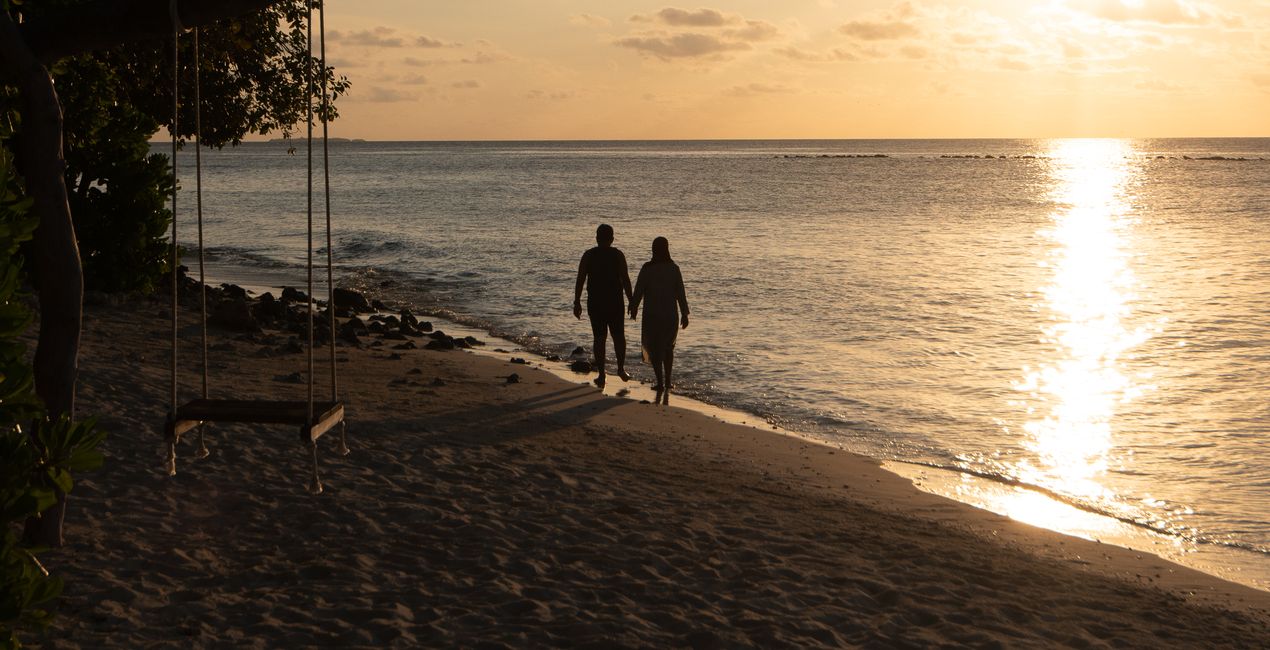
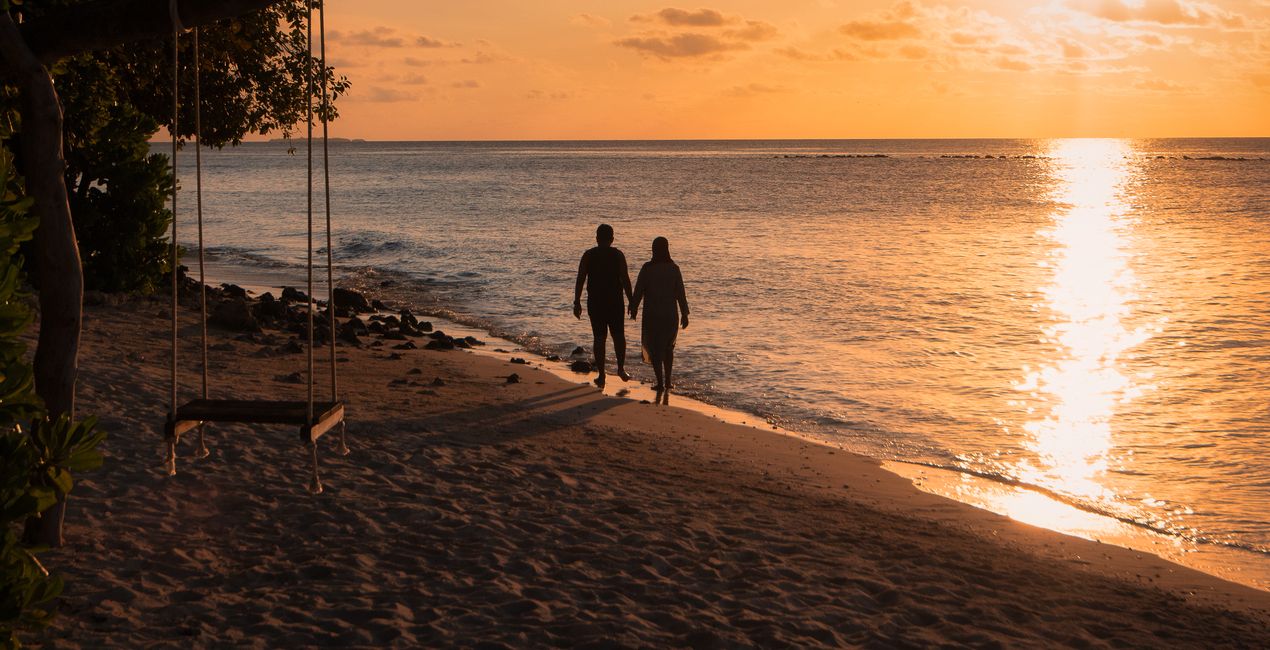
Sunset Stroll: A pop of warm color and strong contrast for perfect silhouette captures.
Villa: Desaturated greens and earth tones with a pop or contrast for standout portraits.
Nostalgic: Striking and desaturated high key look.
Vintage Shoot: Beautiful matte look with faded and muted colors.
Don’t forget to share your results! Use the hashtag #madewithluminar on social media so the Skylum Team can take a look at your work!
Productos relacionados


Creador
Mathew Browne
Photographer. Skylum Ambassador.
Mathew Browne is a cross-genre photographer who has gained recognition for his vibrant images spanning the spectrum of travel photography. A prolific traveler, Mathew has visited nearly 70 countries and photographs extensively for the photo location sharing platform PhotoHound, which he co-founded in 2018.
These Looks serve as the foundation for much of his wildlife portfolio, often allowing him to achieve his desired result with just one click.
¿Cómo puedo contactar a soporte?
Si tienes alguna duda o pregunta sobre el producto, puedes contactar al servicio de soporte 24/7. Visita este enlace.
¿Qué tengo que hacer para comprar Family Vacation?
Para comprar Family Vacation, sigue estos pasos:
1. Abre el Marketplace de Skylum.
2. Ve a la pestaña correspondiente donde aparece Family Vacation. Haz clic sobre él y añádelo a tu carrito.
3. Ve al carrito. Aquí, completa el proceso de compra de Family Vacation.
4. Después de completar la compra, recibirás un correo de confirmación con el enlace de descarga de Family Vacation. También encontrarás el nuevo producto en tu cuenta de Skylum, dentro de la pestaña “Mis complementos”.
¿Qué tengo que hacer para instalar Family Vacation?
Recibirás un email con instrucciones detalladas sobre cómo instalar Family Vacation junto con un enlace de descarga.
También puedes instalar el producto comprado directamente desde Luminar Neo: ve a Extras > Marketplace, selecciona la categoría del producto, busca el elemento adquirido y haz clic en Instalar.
¿Dónde puedo encontrar mi(s) Family Vacation tras la instalación?
¡Es muy fácil! Ve a la pestaña de Ajustes Preestablecidos y selecciona "Comprados". Tu ajuste preestablecido instalado estará ahí.
¿Y si pierdo mi(s) Family Vacation?
No te preocupes. Todos los productos que hayas adquirido, como Family Vacation, se almacenarán en la pestaña 'Mis complementos' de tu cuenta de Skylum para que puedas volver a descargarlos fácilmente.
¿Cómo puedo verificar la compatibilidad de Family Vacation con mi software?
Generalmente, la mayoría de productos son compatibles con Luminar Neo. Pero si quieres asegurarte de que Family Vacation funciona(n) correctamente con tu software, consulta sus especificaciones antes de hacer ninguna compra o descarga. Busca la sección "Compatibilidad" en la parte derecha de la página de Family Vacation, donde aparecen todos los programas compatibles.