 © Mathew Browne
 © Mathew Browne
 © Mathew Browne
Descripción
Discover 12 incredible Presets for Luminar that will transform your images that capture magical holiday scenes. These Presets are designed for some of the most frequent conditions and subject types you’ll encounter, often with heavy vignettes to isolate people and objects and relying on some of Luminar’s AI technologies, such as Structure AI and Accent AI to pick out the fine details.
Qué incluye
12 Presets
Consigue fotos como estas
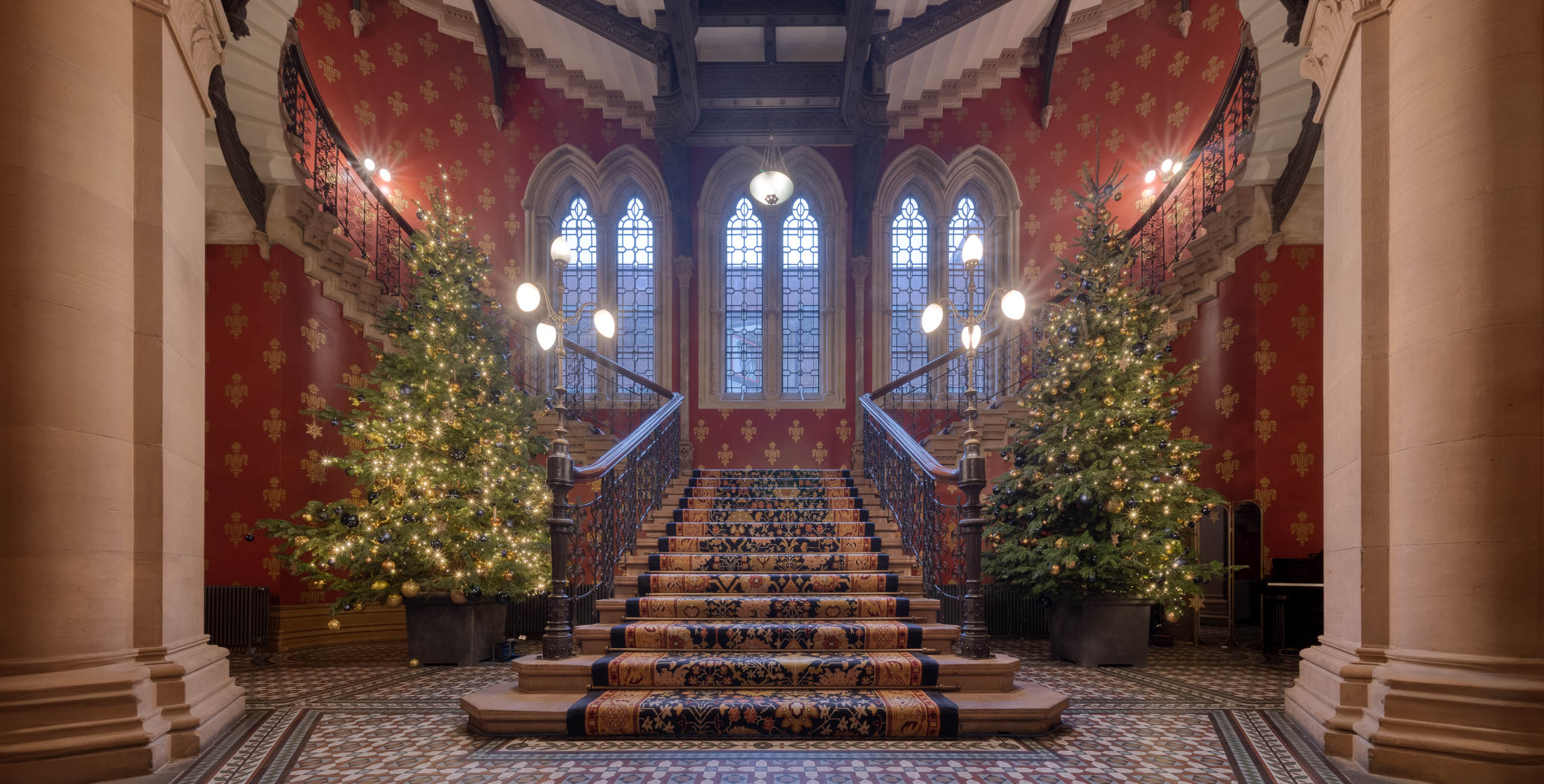
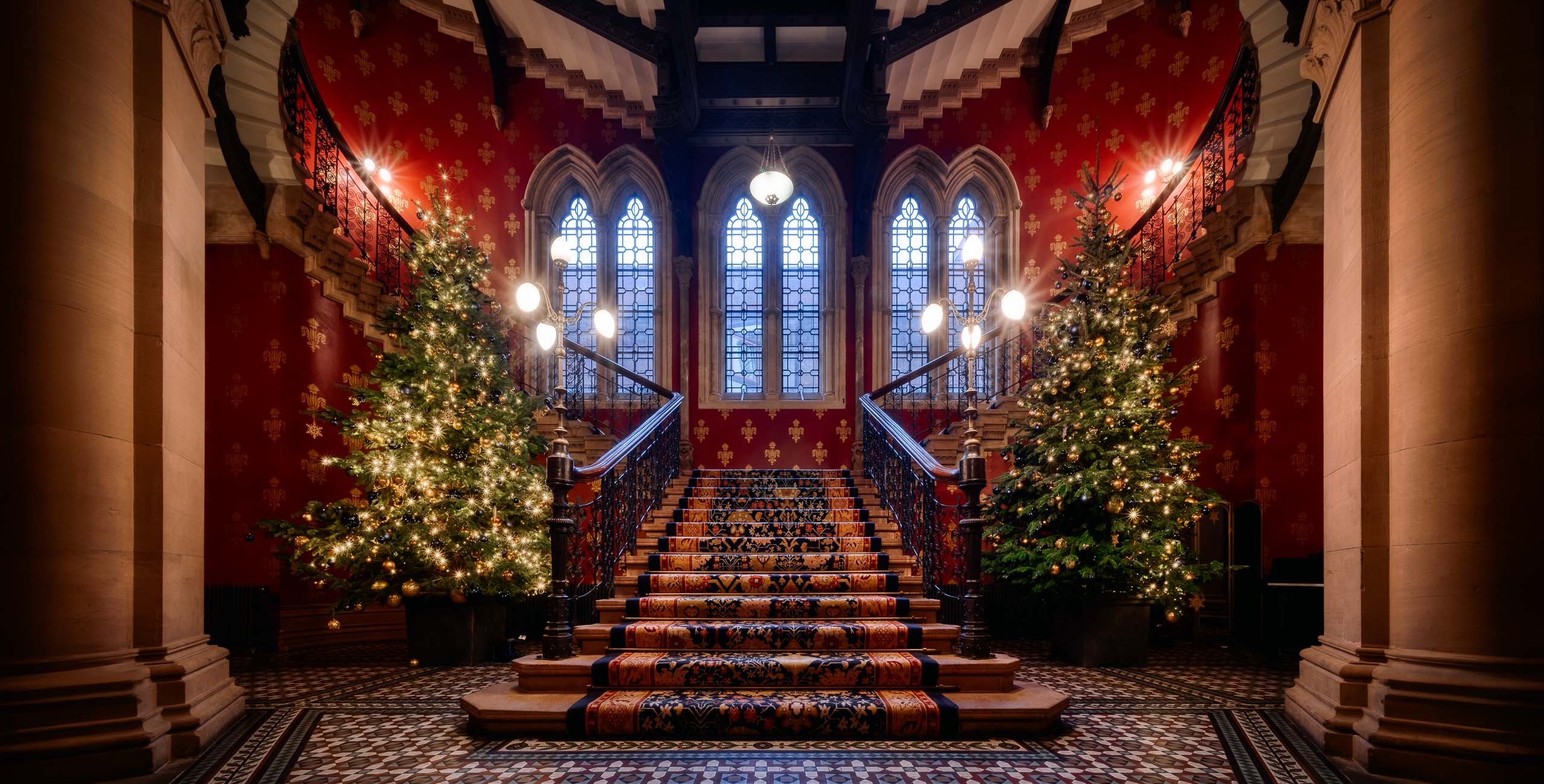
Con los archivos RAW proporcionados, practicarás fácilmente los consejos de retoque y aprenderás a conseguir fotos como estas.
La historia
 © Mathew Browne
You'll find 12 Presets in this pack
Santa Claus: Rich reds, deep darks and bright lights.
White Fireplace: A high-key look for well-lit portraits.
Festive Hour: Richly saturated warm tones for winter evenings.
Festive Street: A cinematic look with desaturated colors.
Snowflakes: Punchy teals and blues and brightened subjects for portraits.
Rathausmarkt: Reducing light pollution and improving shadow detail in Christmas market photos.
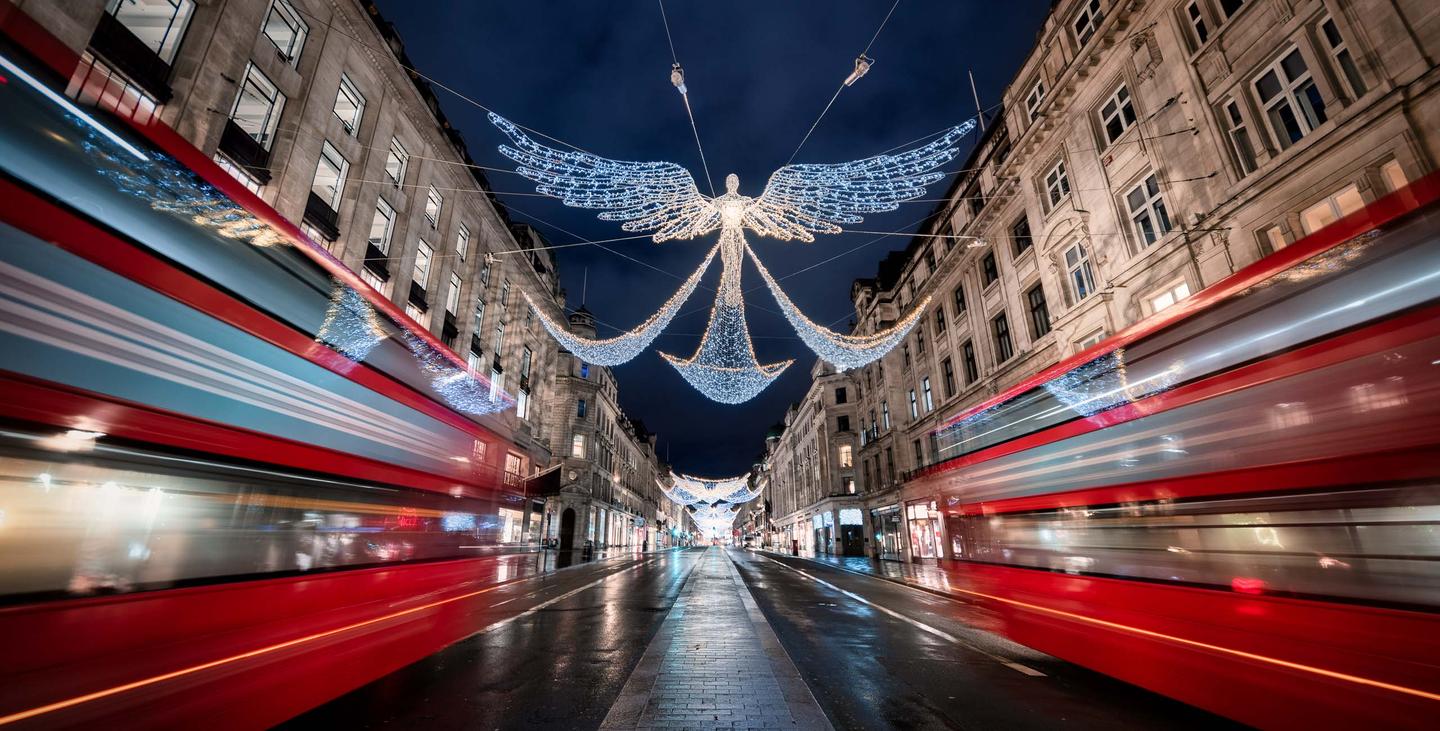
Regent Street: Vibrant colors and improved structure for outdoor scenes.
Classic Tree: A warm, high-contrast look for indoor scenes.
Merry & Bright: A high-key desaturated look for overcast and snowy scenes.
Balanced Lights: Restoring the dynamic range where dark scenery and bright festive lights meet.
Twinkle: Improving shadow detail and contrast in images exposed for twinkling lights.
Stadtplatz: A warm look for Christmas lights in the blue hour.
Use these Presets as a single-click edit, or use them to jumpstart your custom edit. Turn your snaps into works of art with these Presets which are ideal for raw files. Time to try them out on your photos!
Don’t forget to share your results! Use the hashtag #madewithluminar on social media so the Skylum Team can take a look at your work!
Productos relacionados




Creador
Mathew Browne
Photographer. Skylum Ambassador.
Mathew Browne is a cross-genre photographer who has gained recognition for his vibrant images spanning the spectrum of travel photography. A prolific traveler, Mathew has visited nearly 70 countries and photographs extensively for the photo location sharing platform PhotoHound, which he co-founded in 2018.