Applicato


White Objects
Save $201 $ 19 .00

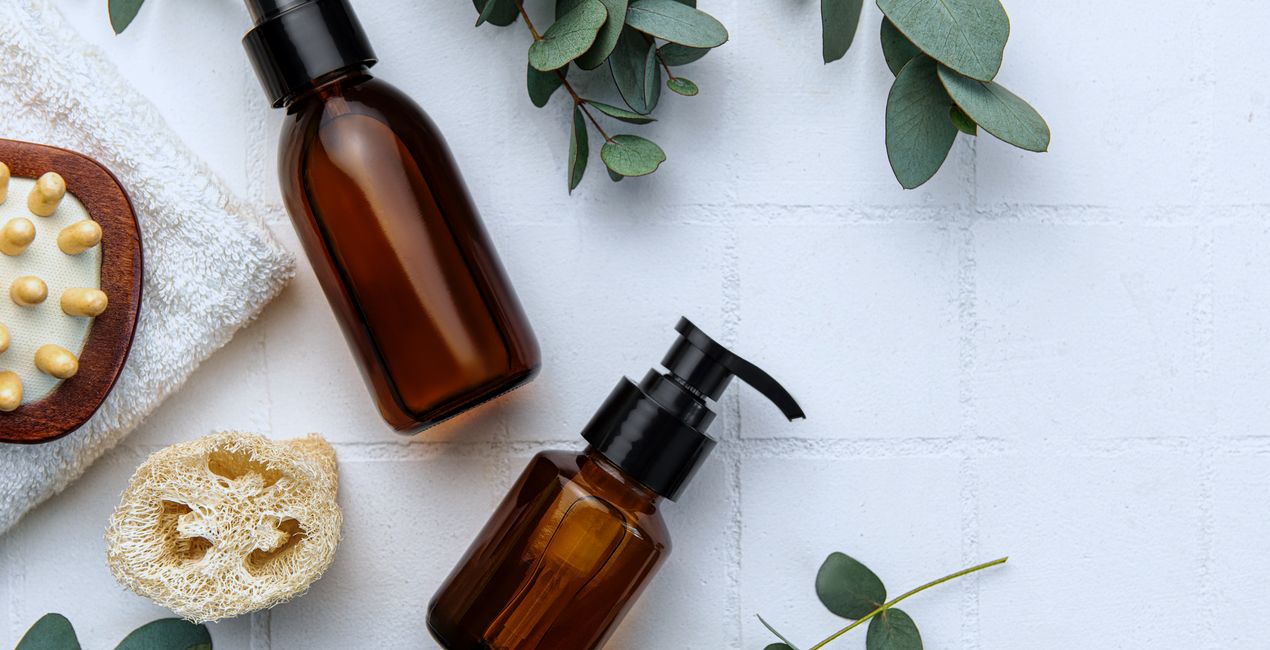
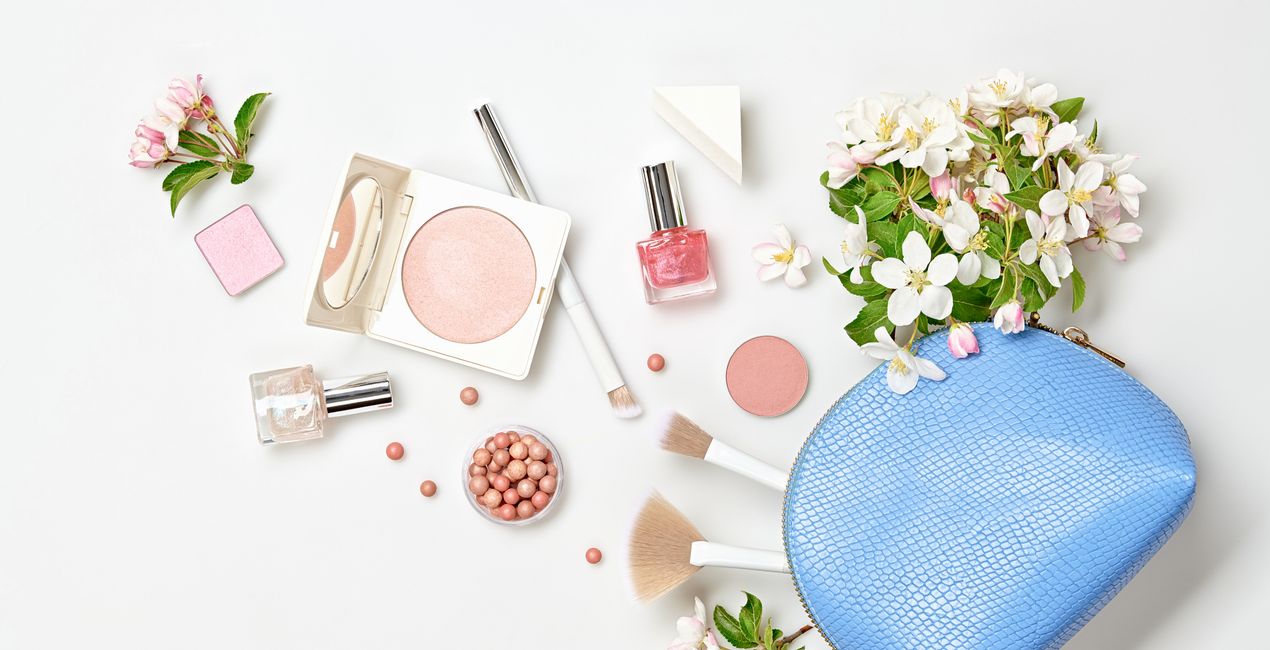
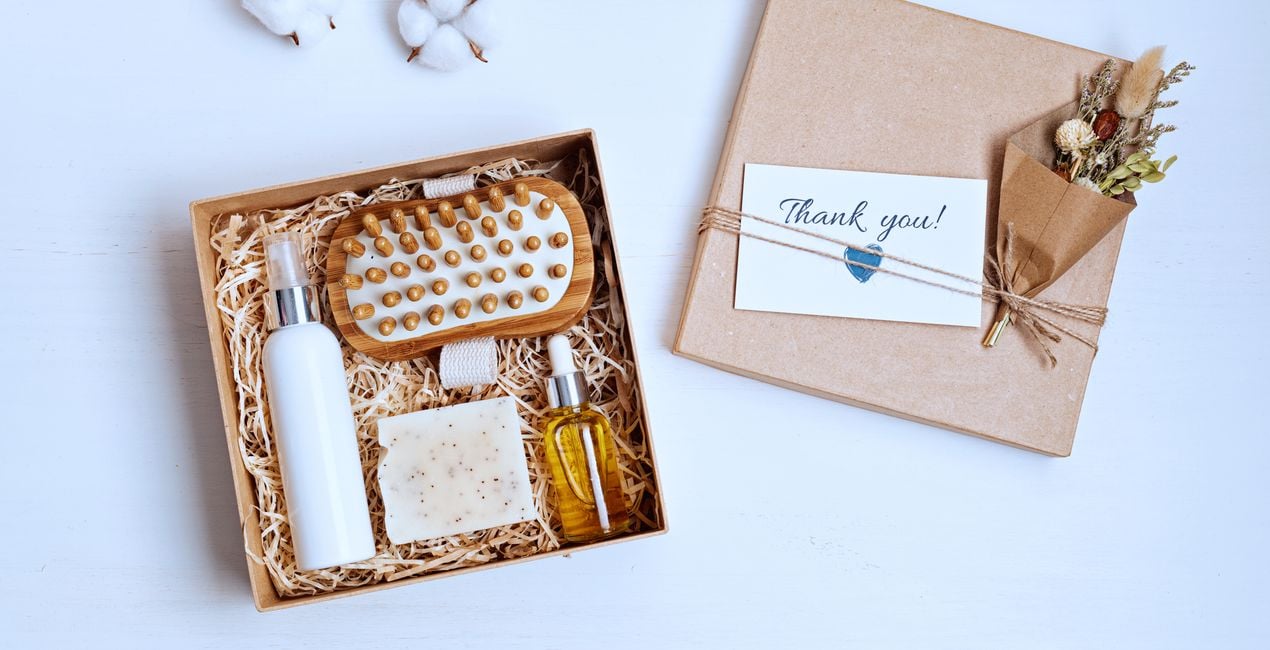
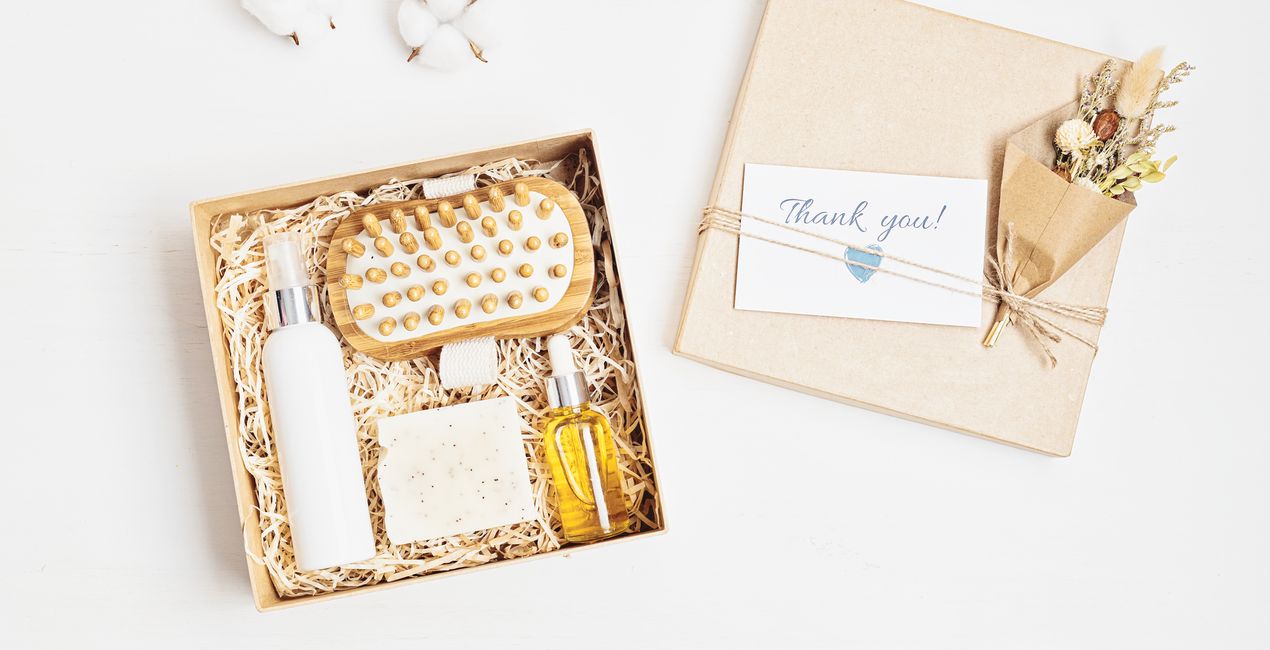
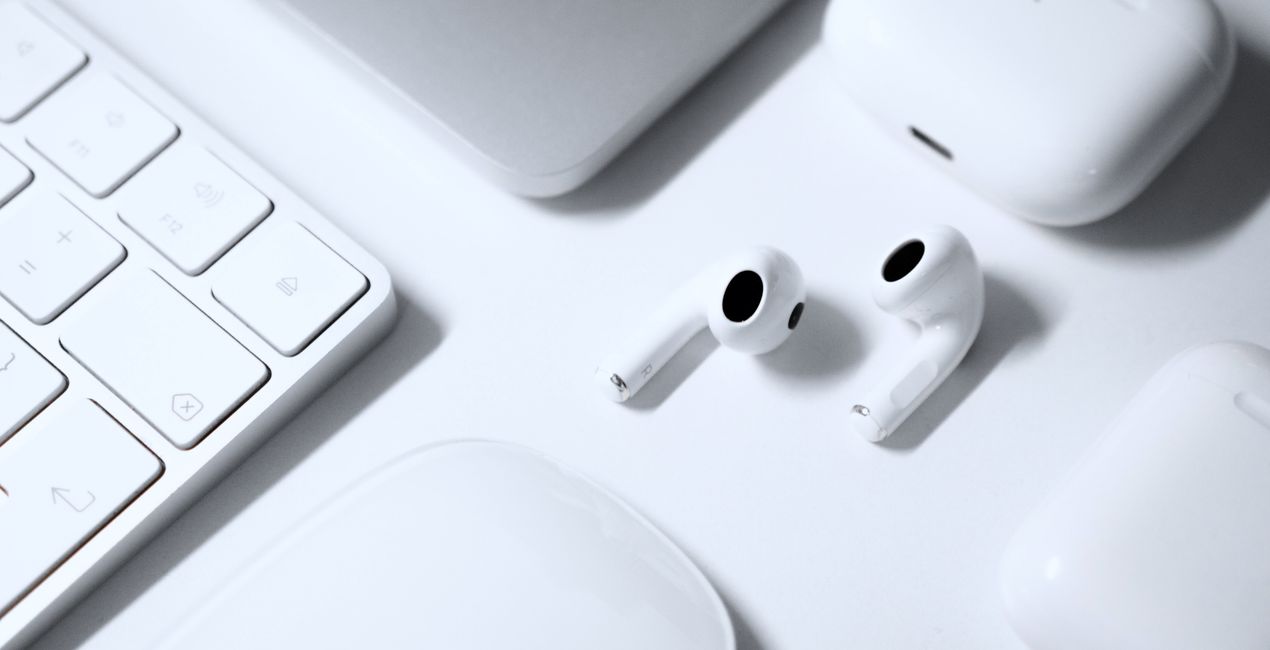
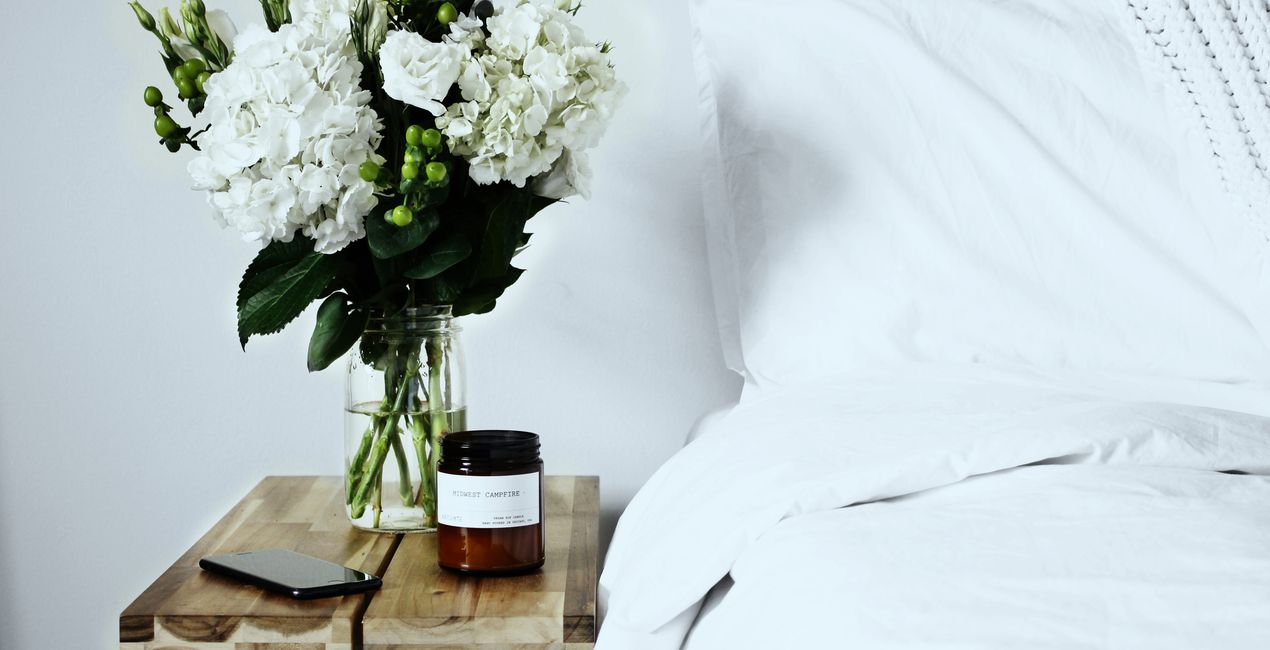
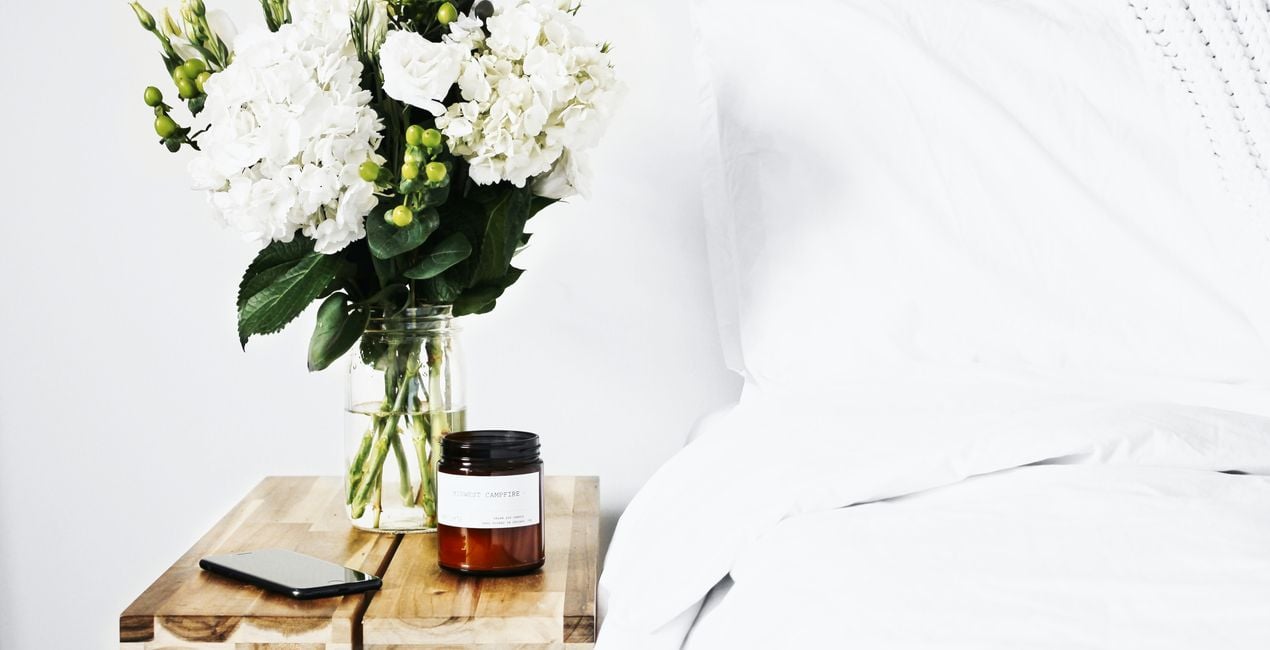
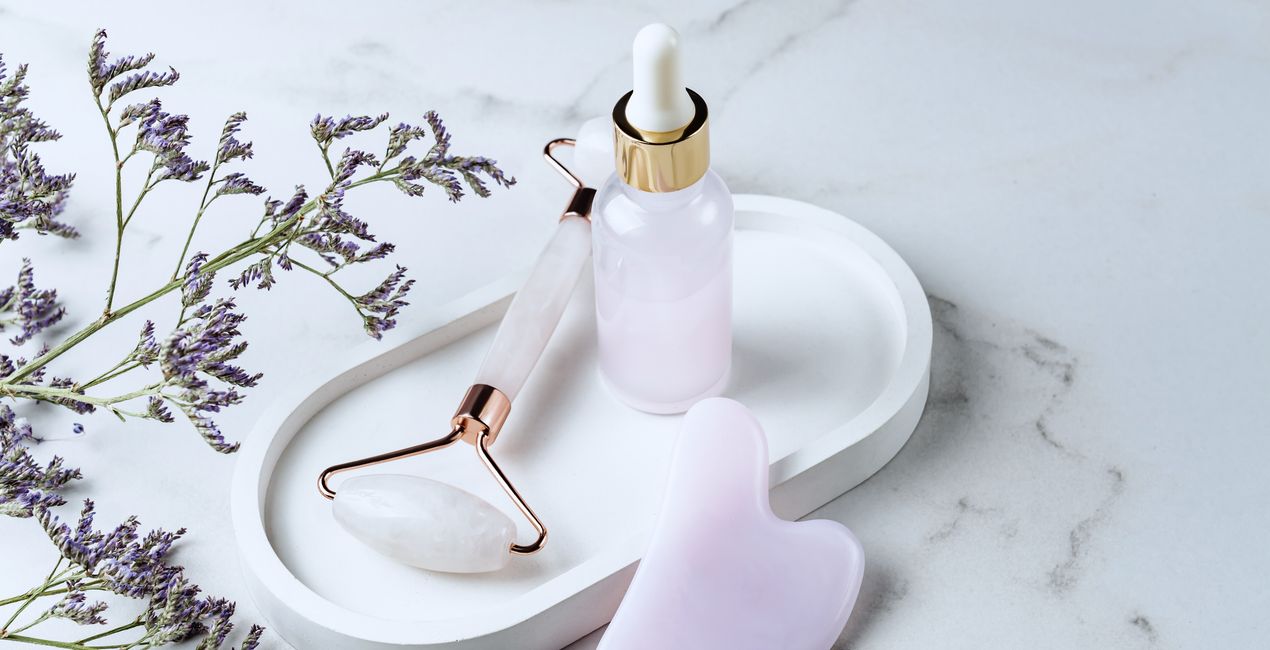
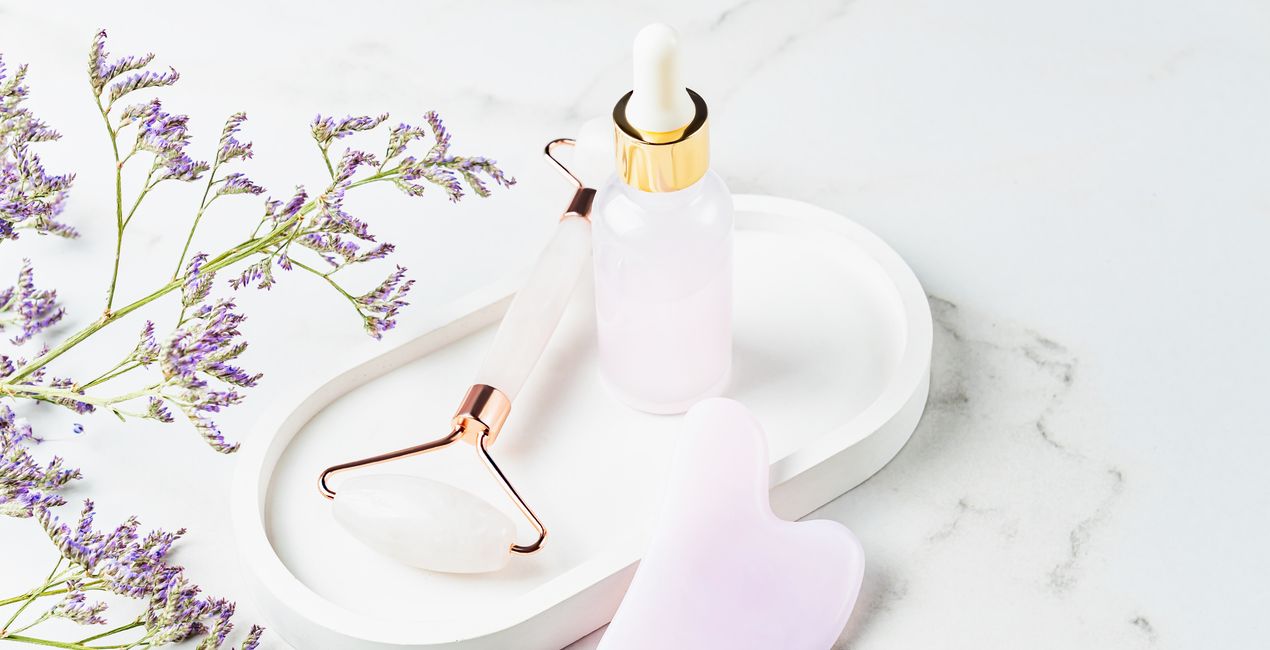
Taking photographs of products against a white background can enhance their contrast and draw more attention to them. You can utilize our set of 10 expertly designed Presets to achieve a polished and professional look for your images, which will surely capture everyone's attention.

Utilizzando i file RAW forniti, potrai mettere facilmente in pratica i consigli di ritocco e imparare a ottenere foto come queste.
 >
>
 >
>
 >
>
 >
>
 >
>
 >
>
We understand the importance of making your products look their best. A great way to do this is by taking photos of them on a white background.
To give your images a professional touch, we suggest trying out these 10 powerful Presets designed by Clever Photographer.
With these Presets, you can easily enhance your photos and make them more visually appealing. Your products deserve to stand out and these Presets can help you achieve that.
You will find 10 Presets in this Pack:
Antique – This Preset is bright, clean, and has a naturally warm and faded effect.
Stone White – Building on natural white color, this Preset adds bright highlights and balanced contrast.
Pearl – Contrasty Preset with natural tones and heavy shadows.
Salt – Balanced Preset with a soft natural glow and a touch of tint.
Feather – Warm and clean look with pastel colors and minimal contrast.
Porcelain – Minimal Preset with open shadows, bright highlights and natural contrast.
Powder – Natural white Preset with extra clarity and details.
White – Preset with a bright, clean vibe highlighted by soft shadows and natural colors.
Atrium – Contrasty Preset with a touch of fade and heavy blacks.
White Whisper – Preset with a soft white glow, minimal shadows and lovely contrast.
Skylum is not affiliated with, endorsed by, or an official partner of any of the trademarks that may be depicted in the images used on this page. All trademarks and brand names mentioned are the property of their respective owners.
Co-Founder of Clever Photographer
Jakub Bors is a UK-based landscape photographer with over 15 years of experience in digital art and technology. He’s most inspired by the work of Trey Ratcliff and Scott Kelby. Jakub has a large and supportive fanbase on social media, sells prints of fine art photography worldwide, has worked for PX500 and Trivago on their European projects, and has had his work published in several magazines including Practical Photography. His passion for traveling has brought Jakub to almost every corner of the planet and helped him connect with amazing people.
Se hai domande sui prodotti, puoi contattare il team dell'assistenza tutti i giorni, 24 ore al giorno. Utilizza questo link.
Per acquistare White Objects, segui questi passaggi:
1. Apri il Marketplace di Skylum.
2. Vai sulla scheda dove è elencato White Objects. Clicca sul nome del prodotto per aggiungerlo al carrello.
3. Vai al carrello, dove potrai completare l'acquisto di White Objects.
4. Dopo l'acquisto, riceverai un'e-mail con il link per scaricare White Objects. Potrai trovare il nuovo acquisto anche nel tuo account Skylum, nella scheda I miei add-on.
Nell'e-mail con il link per il download riceverai anche istruzioni dettagliate su come installare White Objects.
Inoltre, puoi installare l'articolo acquistato direttamente in Luminar Neo: vai su Extra > Marketplace, seleziona la categoria di prodotto, trova l'articolo acquistato e clicca su Installa.
È facilissimo! Vai nella scheda Preset, quindi seleziona Acquistati. Qui troverai i preset che hai acquistato.
Non preoccuparti. Tutti gli articoli acquistati, incluso White Objects, vengono conservati nella scheda "I miei add-on" del tuo account Skylum, così potrai riscaricarli e utilizzarli in tutta facilità.
In generale, la maggior parte degli articoli è compatibile con Luminar Neo. Ma per assicurarti che White Objects sia compatibile con i tuoi software, verificane le specifiche prima di scaricarlo o acquistarlo. Cerca la sezione "Compatibilità" sulla destra della pagina di White Objects, dove sono elencati tutti i prodotti compatibili.
Non andartene ancora. Ecco un codice sconto esclusivo per te. Usalo entro i prossimi 15 minuti per ottenere un ulteriore sconto del 10% al momento del pagamento. Copia il codice qui sotto e completa l'acquisto.
15 m : 00 s