Applicato




Informazioni
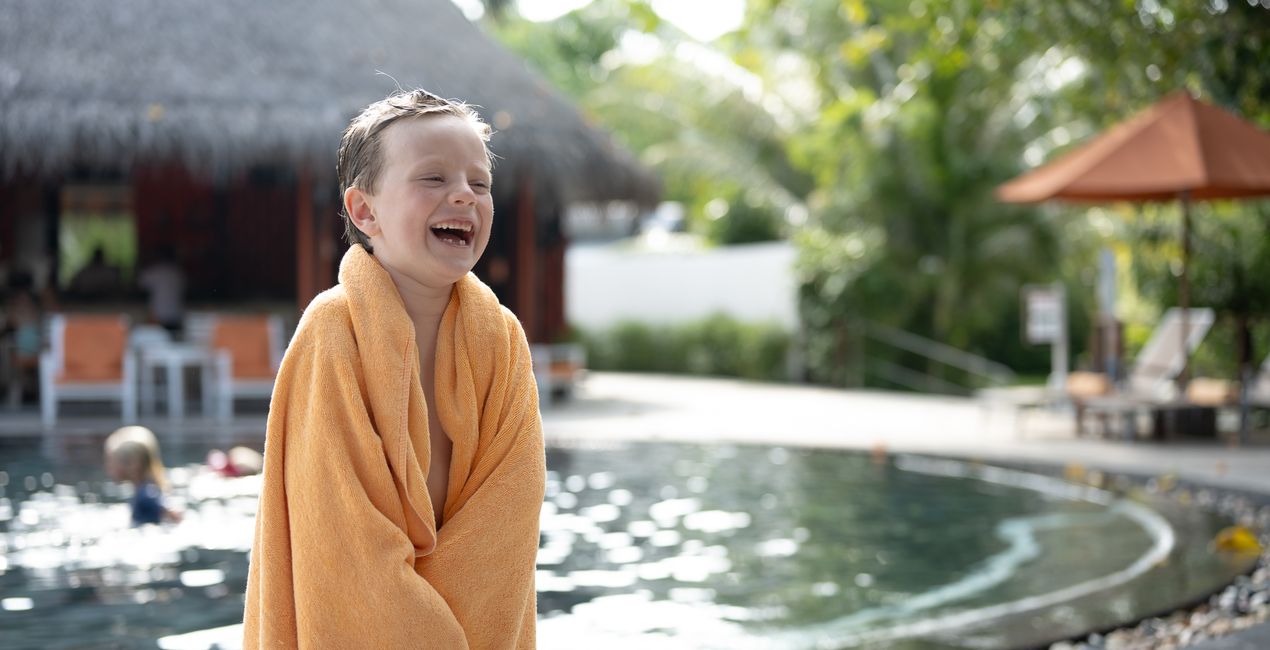
Discover these 10 incredible Presets for Luminar Neo that will transform your images captured on family vacations. Your vacation time with your family is precious and these Presets will help you create stunning images from those special moments you captured on camera. These Presets are designed for some of the most popular types of family vacations, often with subtle vignettes to isolate your portraits and relying on some of Luminar Neo’s AI technologies, such as Face AI, Skin AI and Accent AI to pick out the fine details of your subjects. Use these Presets as a single-click edit, or use them to jumpstart your custom edit. Turn your snaps into works of art with these Presets which are ideal for raw files. Time to try them out on your photos!
Compatibilità

Ottieni foto come queste
Utilizzando i file RAW forniti, potrai mettere facilmente in pratica i consigli di ritocco e imparare a ottenere foto come queste.

 >
>

 >
>
 >
>
 >
>

 >
>
 >
>
La storia
You'll find 10 Presets in this pack
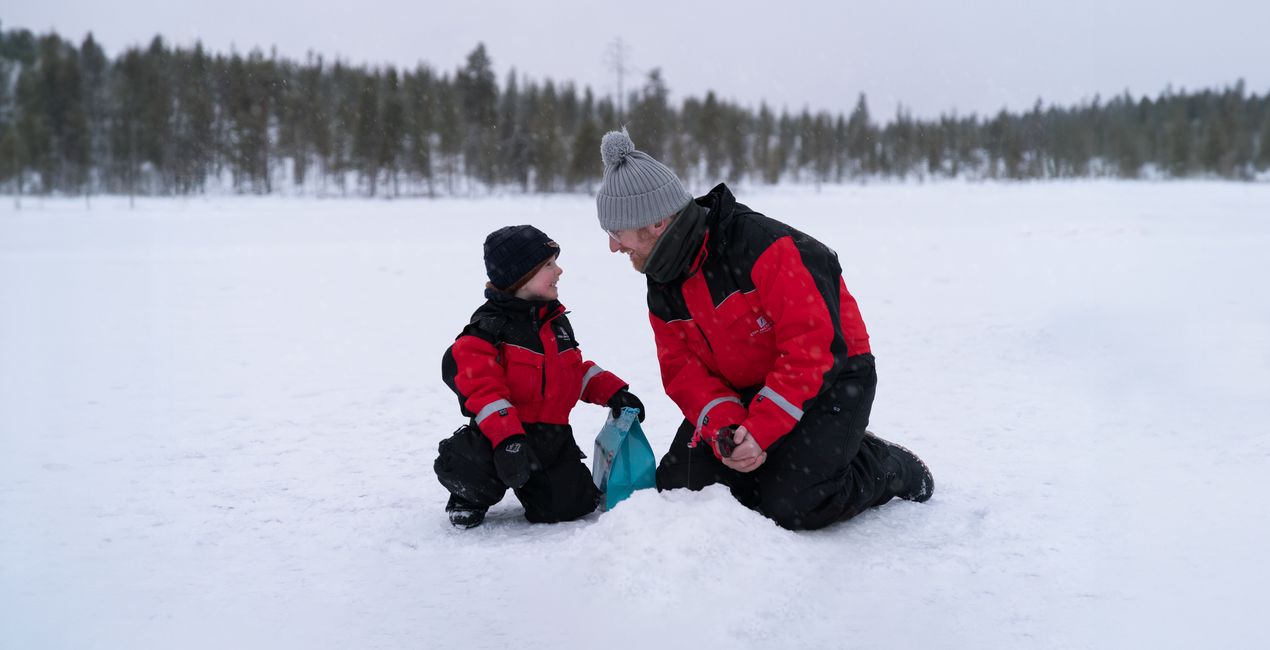
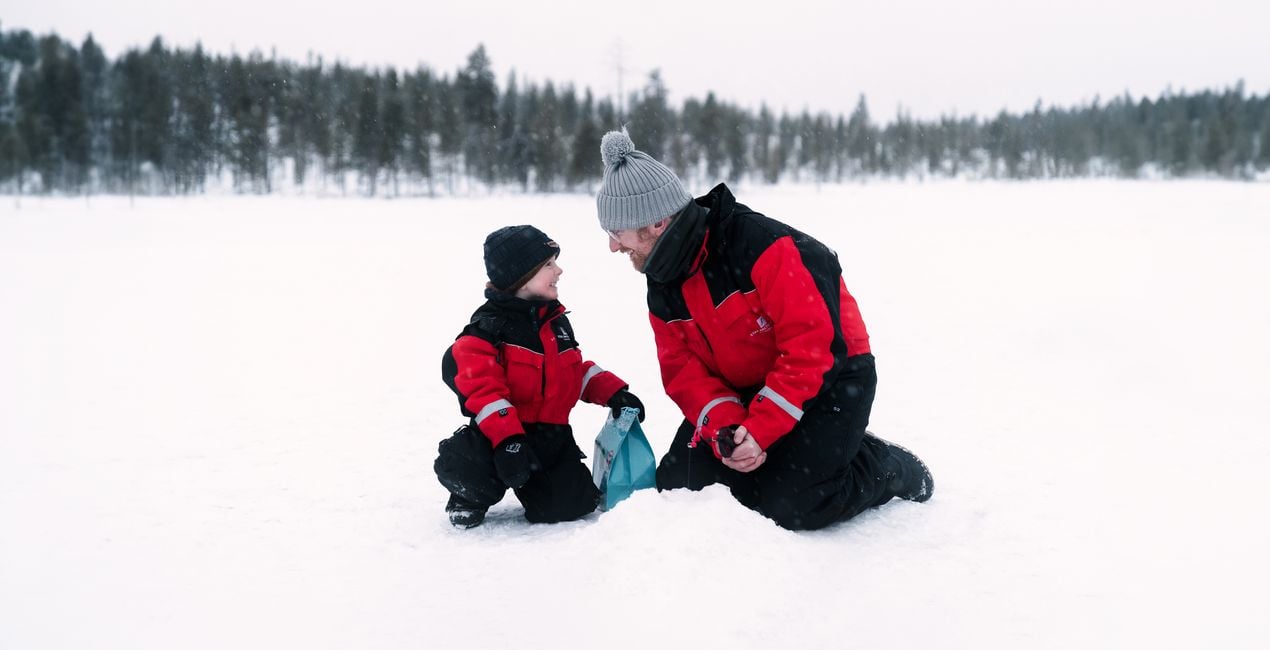
Snow Fun: A high-key desaturated look with a subtle glow to enhance the pristine beauty of snow.
Tropical Beach: Vibrant color, exposure, and contrast detail for well-lit, sunny beach portraits.
Poolside: A bright and dreamy look for underexposed images.
Forest Walk: Cinematic look with an emphasis on greens and earthy tones.
Fall Adventure: Boost of reds and oranges for punchy fall portraits.
Bright Shoot: Dreamy, warm look that calms down harsh shadow contrast for images captured in bright sunlight.
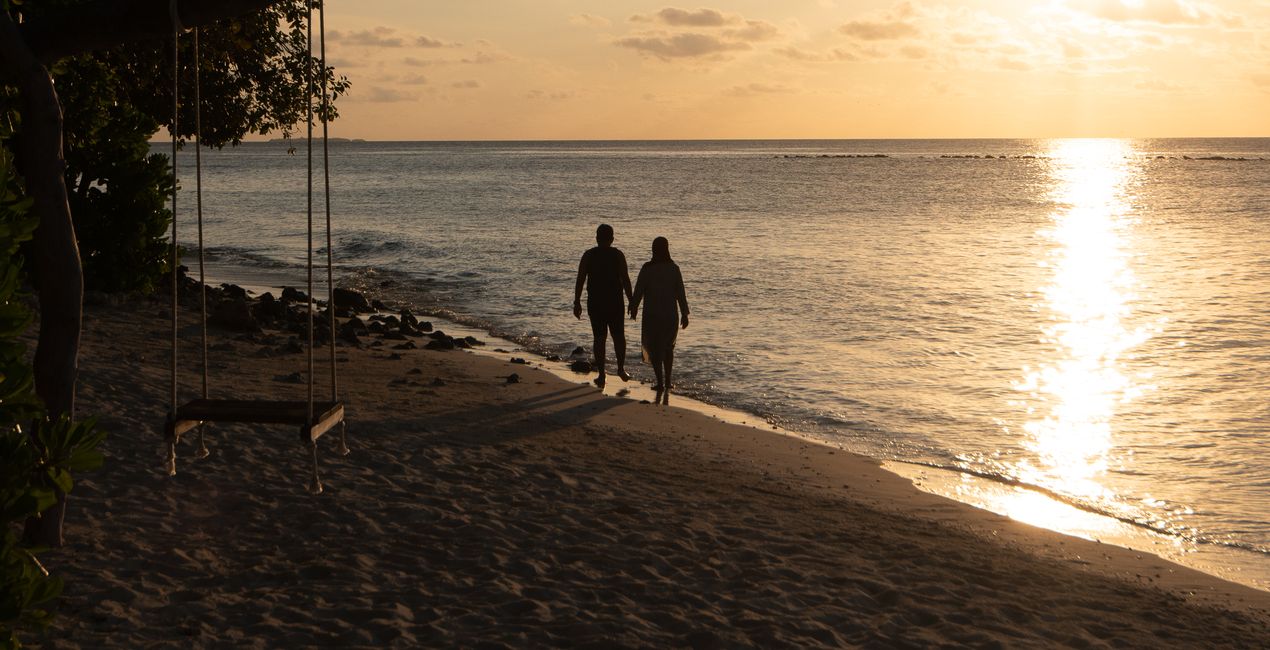
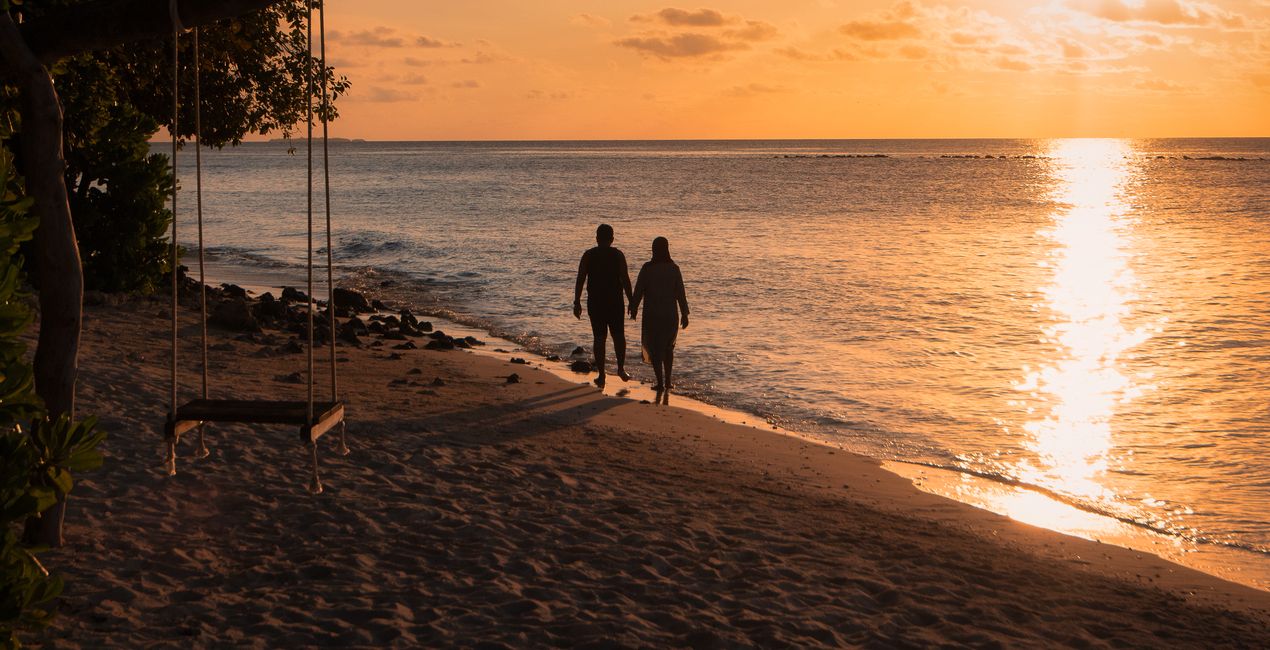
Sunset Stroll: A pop of warm color and strong contrast for perfect silhouette captures.
Villa: Desaturated greens and earth tones with a pop or contrast for standout portraits.
Nostalgic: Striking and desaturated high key look.
Vintage Shoot: Beautiful matte look with faded and muted colors.
Don’t forget to share your results! Use the hashtag #madewithluminar on social media so the Skylum Team can take a look at your work!
Prodotti correlati


Creator
Mathew Browne
Photographer. Skylum Ambassador.
Mathew Browne is a cross-genre photographer who has gained recognition for his vibrant images spanning the spectrum of travel photography. A prolific traveler, Mathew has visited nearly 70 countries and photographs extensively for the photo location sharing platform PhotoHound, which he co-founded in 2018.
These Looks serve as the foundation for much of his wildlife portfolio, often allowing him to achieve his desired result with just one click.
Come faccio a contattare l'assistenza?
Se hai domande sui prodotti, puoi contattare il team dell'assistenza tutti i giorni, 24 ore al giorno. Utilizza questo link.
Come faccio ad acquistare Family Vacation?
Per acquistare Family Vacation, segui questi passaggi:
1. Apri il Marketplace di Skylum.
2. Vai sulla scheda dove è elencato Family Vacation. Clicca sul nome del prodotto per aggiungerlo al carrello.
3. Vai al carrello, dove potrai completare l'acquisto di Family Vacation.
4. Dopo l'acquisto, riceverai un'e-mail con il link per scaricare Family Vacation. Potrai trovare il nuovo acquisto anche nel tuo account Skylum, nella scheda I miei add-on.
Come faccio a installare Family Vacation?
Nell'e-mail con il link per il download riceverai anche istruzioni dettagliate su come installare Family Vacation.
Inoltre, puoi installare l'articolo acquistato direttamente in Luminar Neo: vai su Extra > Marketplace, seleziona la categoria di prodotto, trova l'articolo acquistato e clicca su Installa.
Dove trovo Family Vacation dopo l'installazione?
È facilissimo! Vai nella scheda Preset, quindi seleziona Acquistati. Qui troverai i preset che hai acquistato.
Che succede se perdo Family Vacation?
Non preoccuparti. Tutti gli articoli acquistati, incluso Family Vacation, vengono conservati nella scheda "I miei add-on" del tuo account Skylum, così potrai riscaricarli e utilizzarli in tutta facilità.
Come faccio a verificare se Family Vacation è compatibile con i miei software?
In generale, la maggior parte degli articoli è compatibile con Luminar Neo. Ma per assicurarti che Family Vacation sia compatibile con i tuoi software, verificane le specifiche prima di scaricarlo o acquistarlo. Cerca la sezione "Compatibilità" sulla destra della pagina di Family Vacation, dove sono elencati tutti i prodotti compatibili.