Applied




About
about
Compatibility

Get photos like these
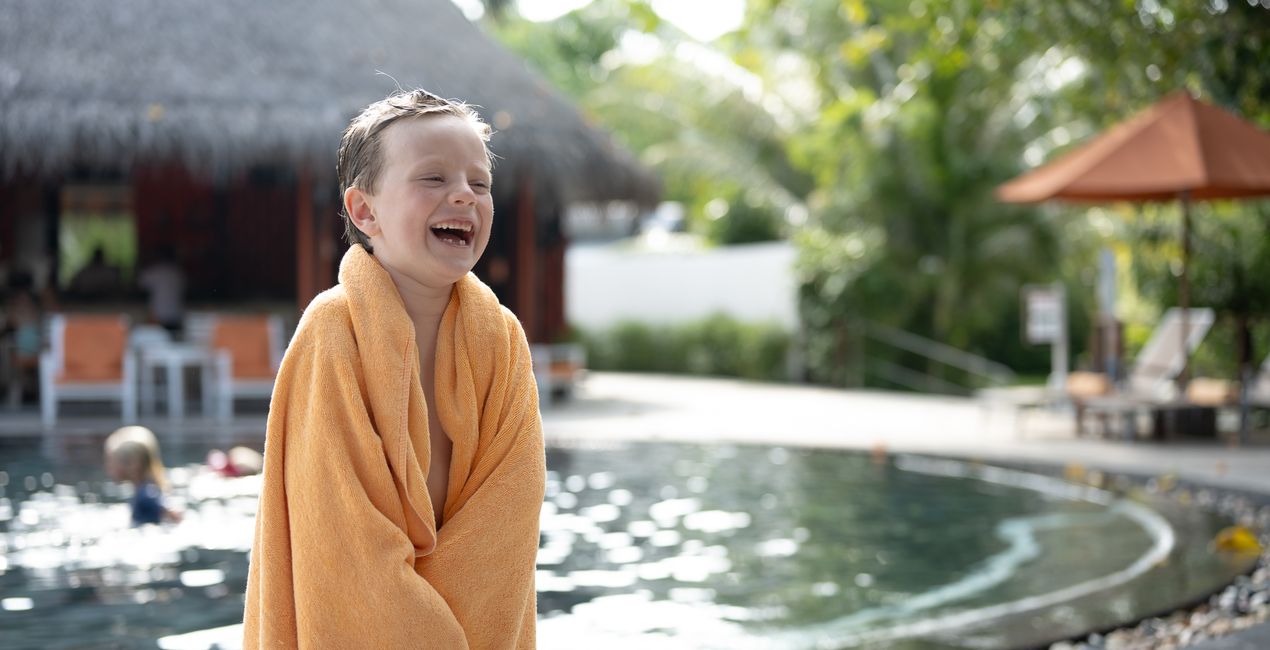
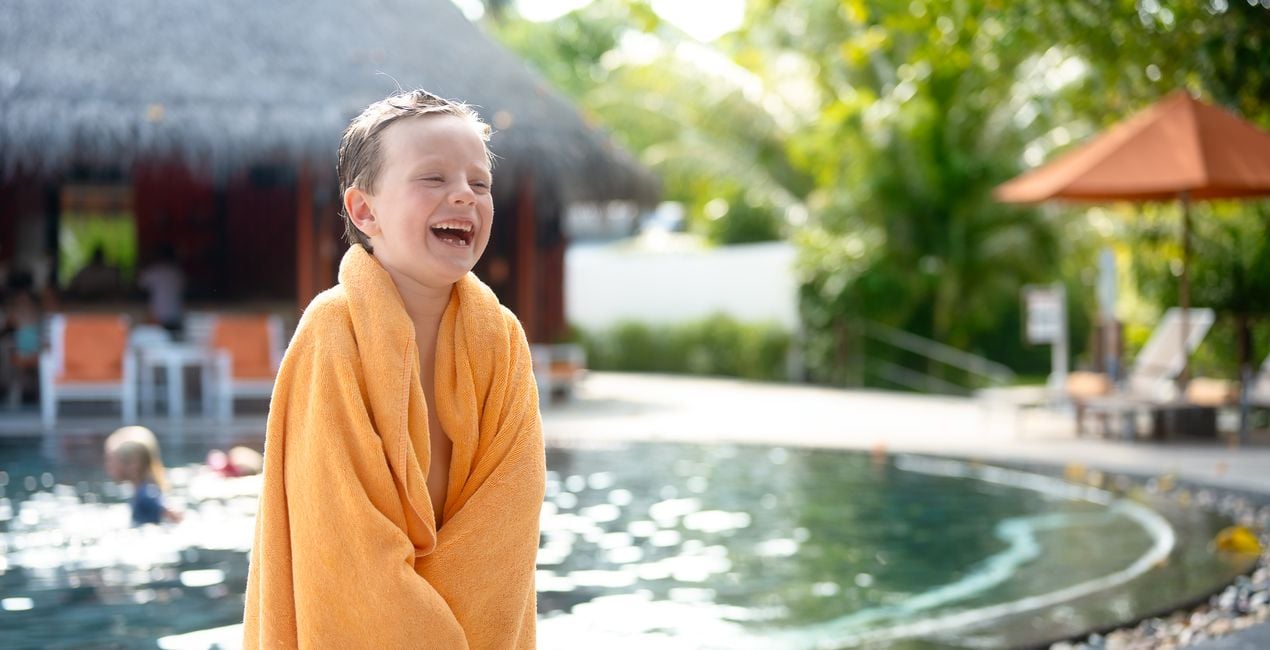
Using RAW files you will easily practice retouching tips and learn how to get photos like these.

 >
>

 >
>
 >
>
 >
>

 >
>
 >
>
The story
You'll find 10 Presets in this pack
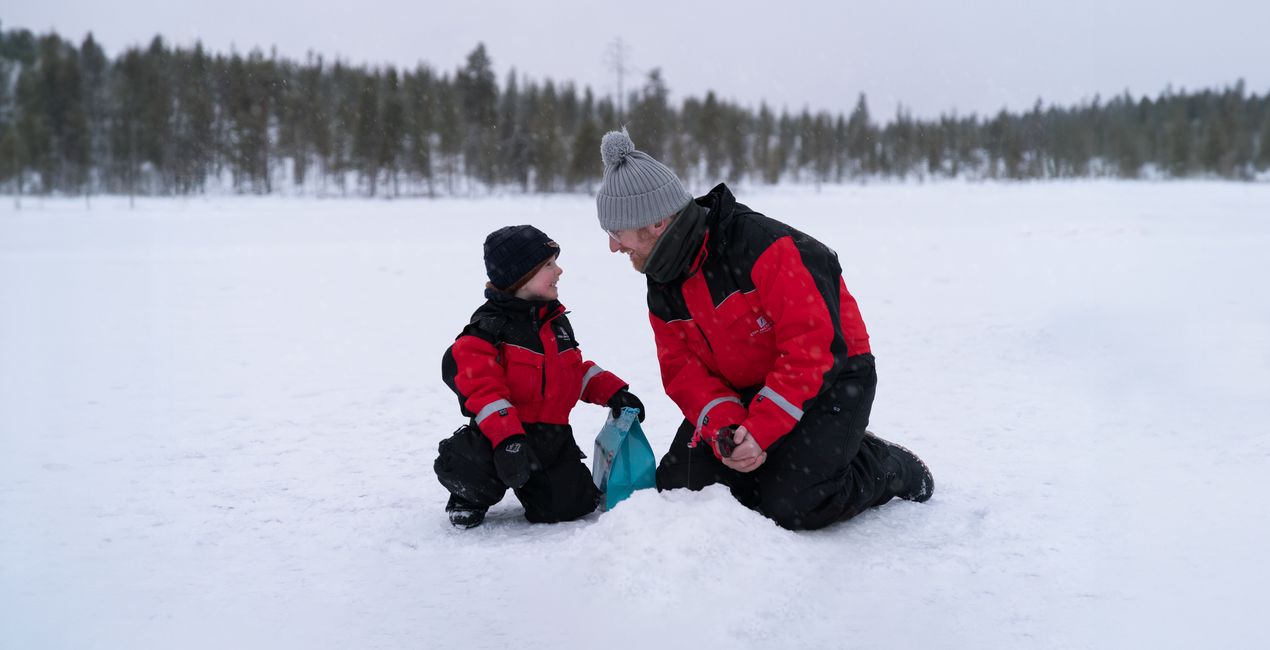
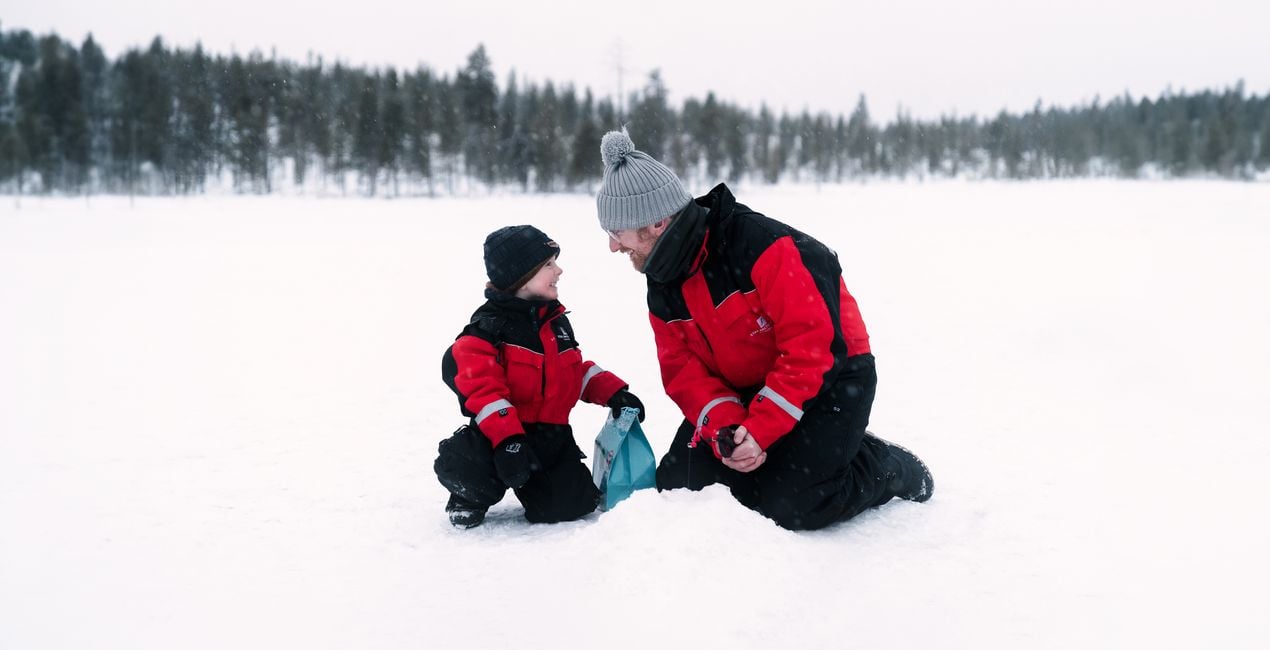
Snow Fun: A high-key desaturated look with a subtle glow to enhance the pristine beauty of snow.
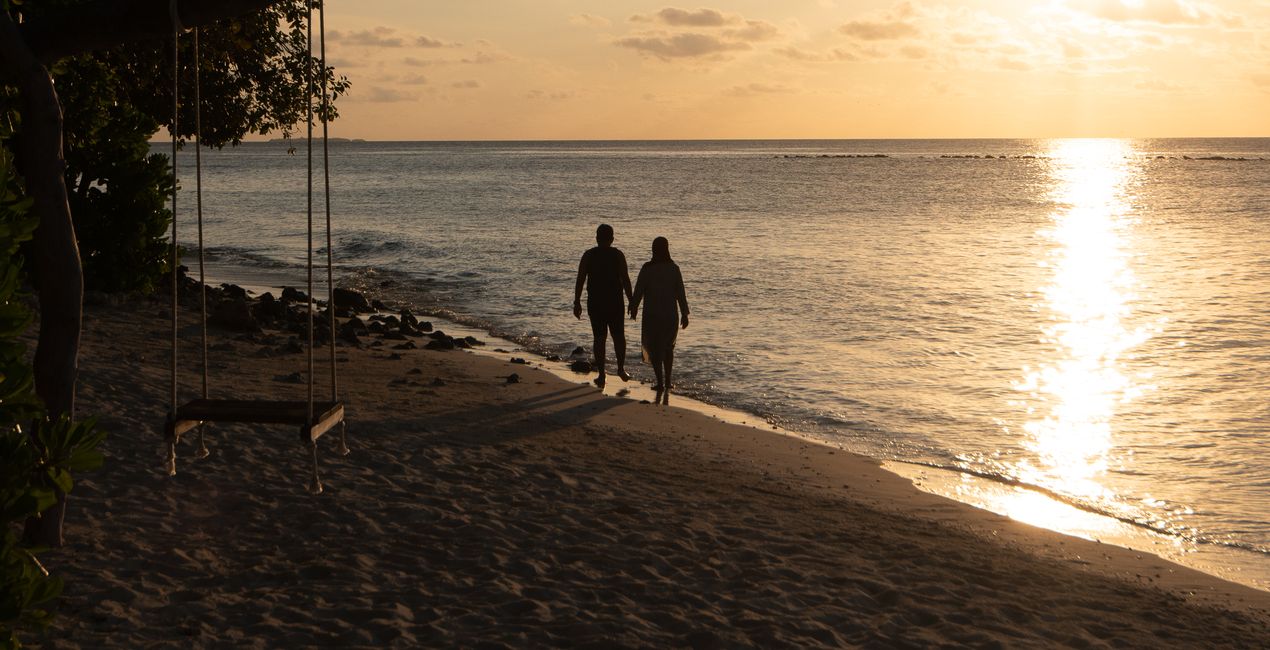
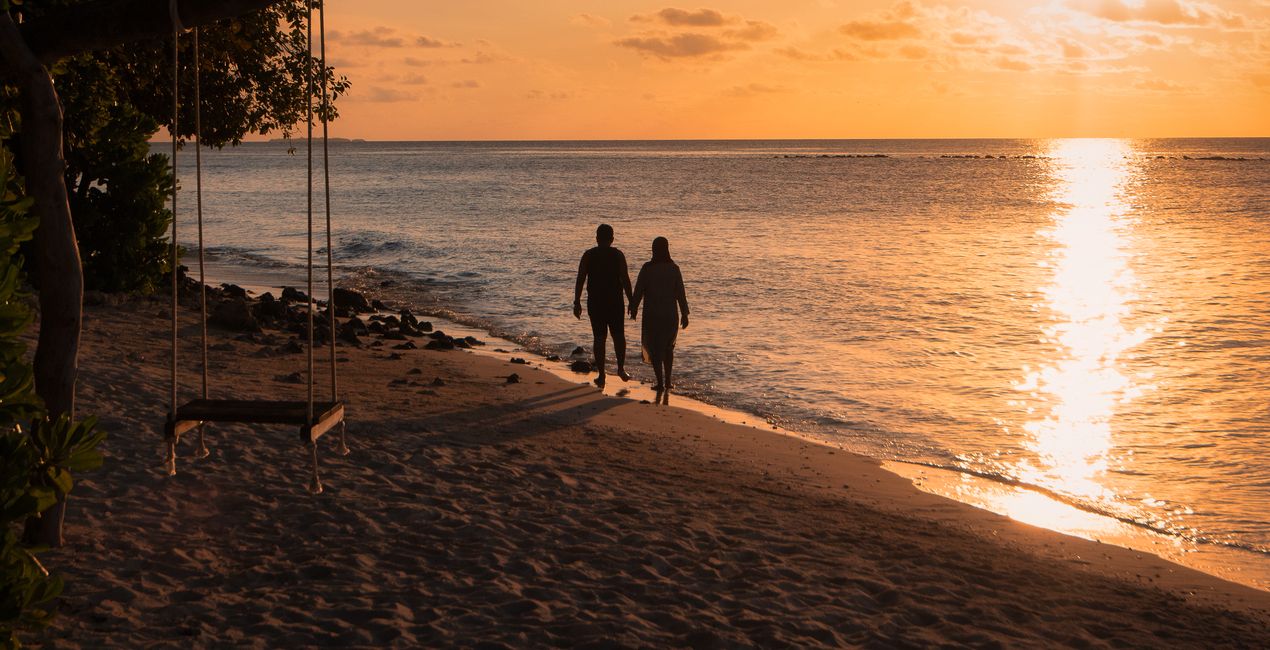
Tropical Beach: Vibrant color, exposure, and contrast detail for well-lit, sunny beach portraits.
Poolside: A bright and dreamy look for underexposed images.
Forest Walk: Cinematic look with an emphasis on greens and earthy tones.
Fall Adventure: Boost of reds and oranges for punchy fall portraits.
Bright Shoot: Dreamy, warm look that calms down harsh shadow contrast for images captured in bright sunlight.
Sunset Stroll: A pop of warm color and strong contrast for perfect silhouette captures.
Villa: Desaturated greens and earth tones with a pop or contrast for standout portraits.
Nostalgic: Striking and desaturated high key look.
Vintage Shoot: Beautiful matte look with faded and muted colors.
Don’t forget to share your results! Use the hashtag #madewithluminar on social media so the Skylum Team can take a look at your work!
Related Products


Creator
Mathew Browne
Photographer. Skylum Ambassador.
Mathew Browne is a cross-genre photographer who has gained recognition for his vibrant images spanning the spectrum of travel photography. A prolific traveler, Mathew has visited nearly 70 countries and photographs extensively for the photo location sharing platform PhotoHound, which he co-founded in 2018.
How do I contact support?
If you have any questions about the product, you can contact the 24/7 support team. Just follow this link.
How do I purchase my Family Vacation?
To purchase Family Vacation, follow these steps:
1. Open Skylum’s Marketplace.
2. Go to the preferable tab where Family Vacation is listed. Click on it and add it to your cart.
3. Proceed to your cart. Here, complete the purchase process for Family Vacation.
4. After the purchase, you will receive a fulfillment email with the download link for Family Vacation. Also, you can find the new item in your Skylum account, My Add-ons tab.
How do I install my Family Vacation?
Detailed instructions on installing the Family Vacation will be sent to you in the fulfillment email alongside the download link.
Besides, you can install the purchased item directly in Luminar Neo: go to Extras > Marketplace, Select the Product category, find the purchased item, and click Install.
Where do I find my Family Vacation after installation?
It’s pretty easy! Go to the Presets tab, then select Purchased. Your installed preset will be here.
What if I lose my Family Vacation?
Don't worry. All purchased items, including Family Vacation, are stored in the 'My Add-ons' tab of your Skylum account, allowing for easy redownload and use.
How do I check whether the Family Vacation is compatible with my software?
Generally, most items are compatible with Luminar Neo. But to ensure Family Vacation is compatible with your software, review its specifications before downloading or purchasing. Look for the 'Compatibility' section at the right of the Family Vacation page, where all compatible products are listed.