Applied


Snow Zen
Save $201 $ 19 .00

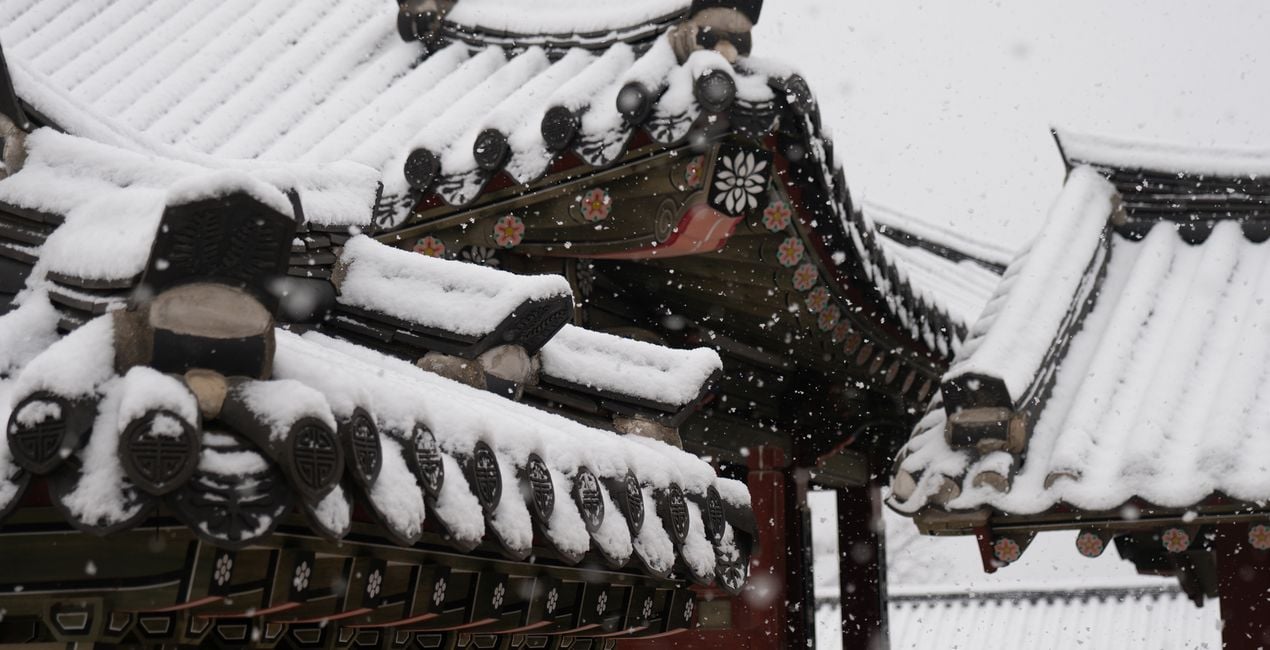
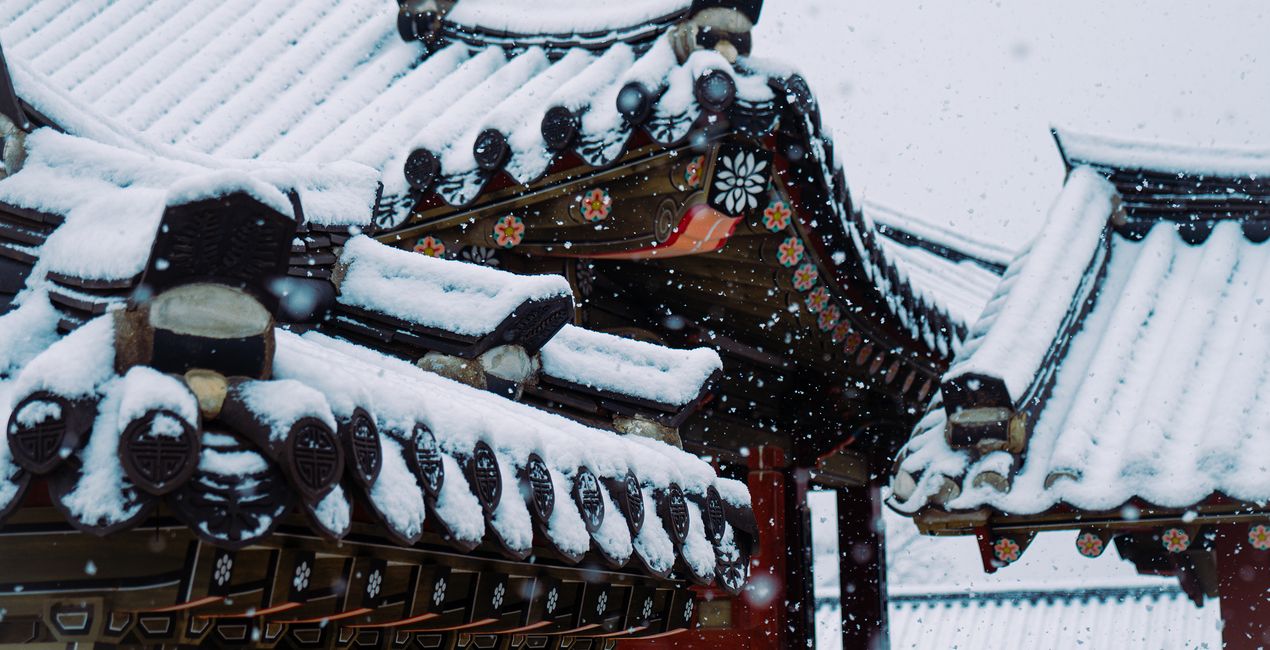
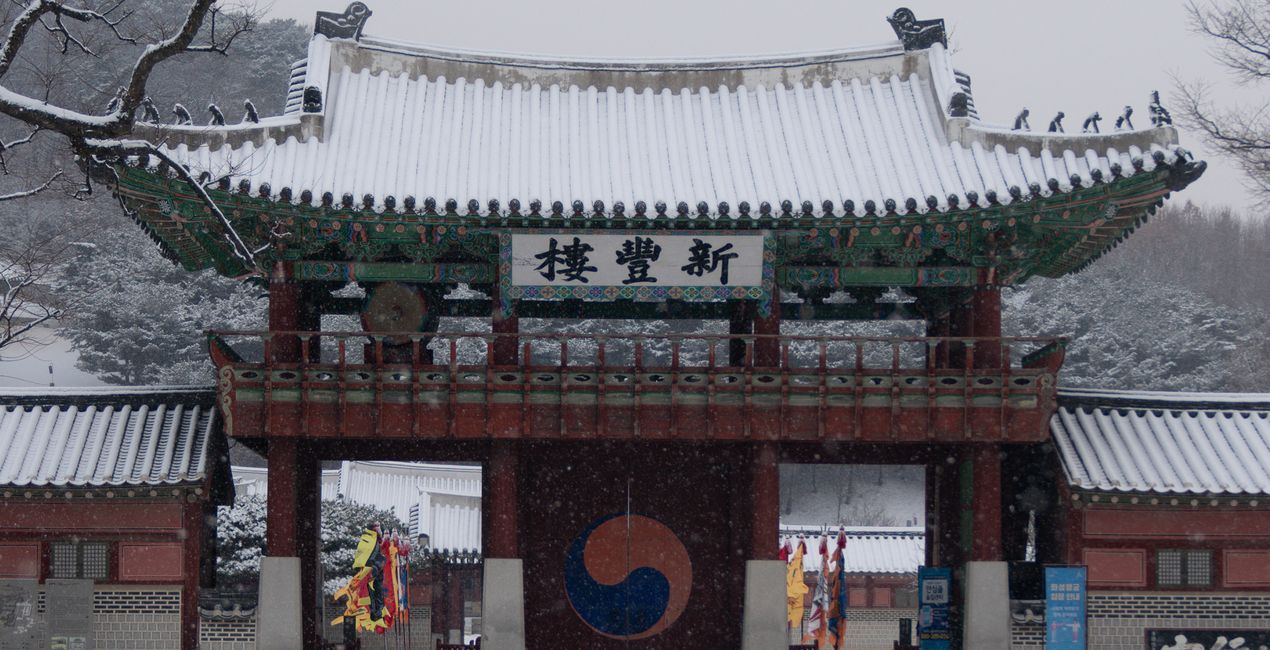
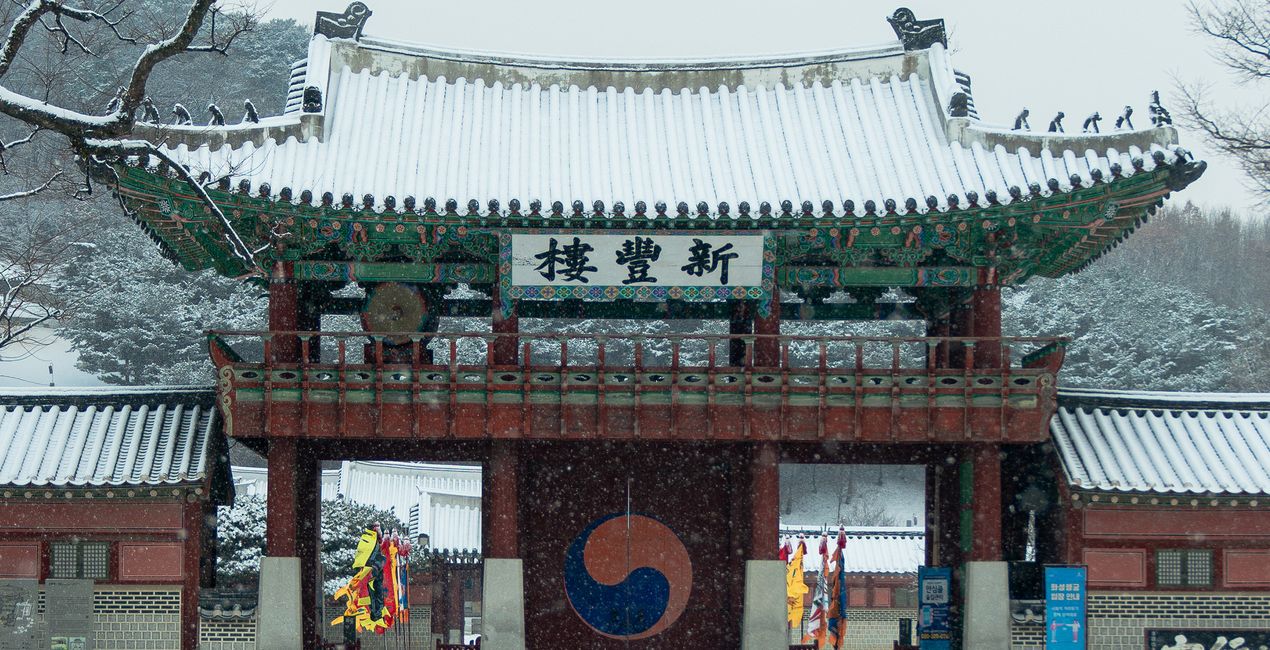
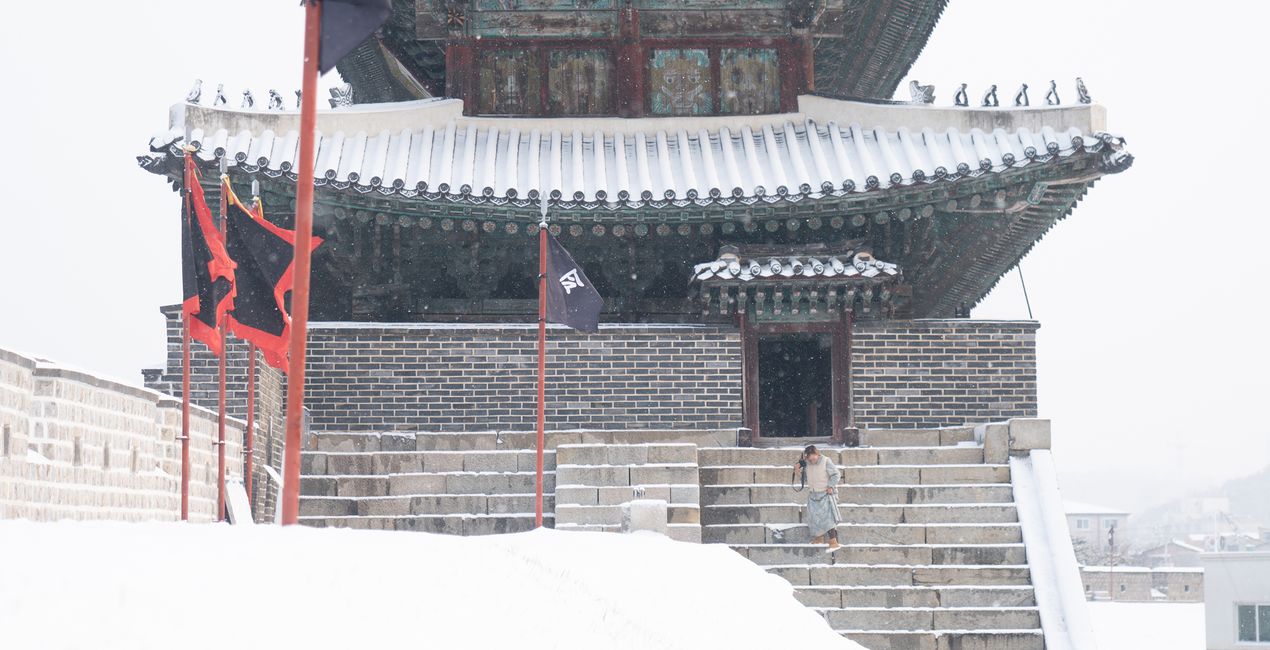
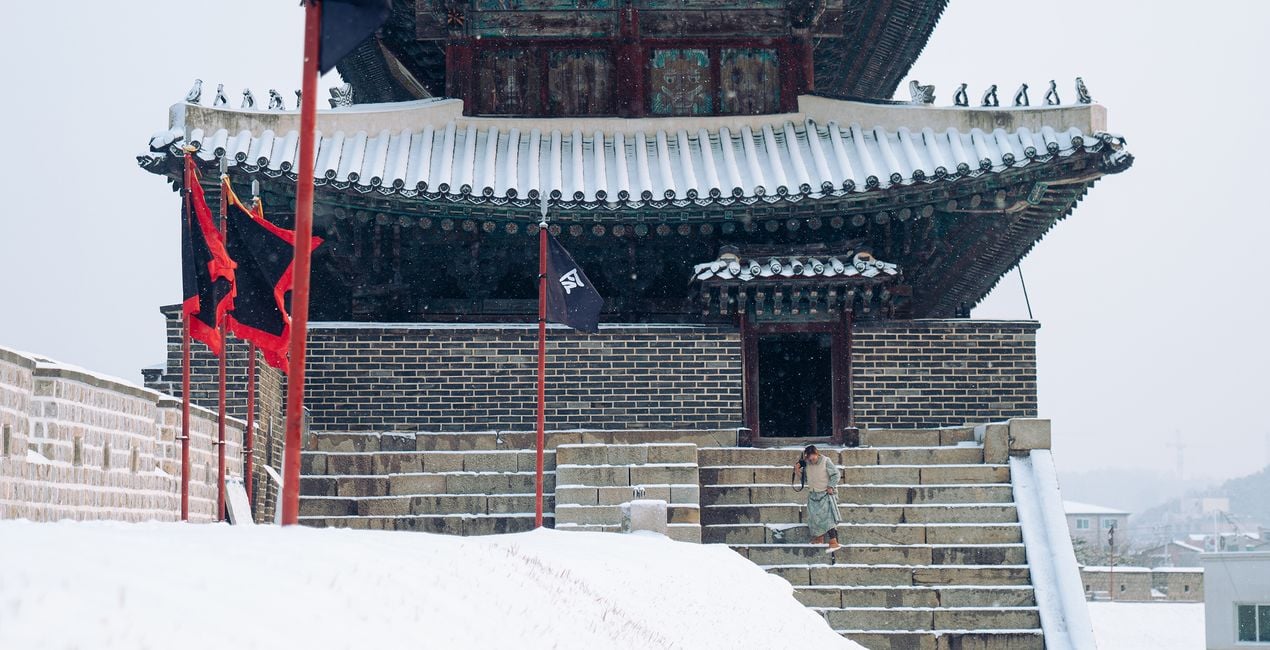
Introducing the ‘Snow Zen’ Preset pack, designed exclusively for capturing the serene beauty of snowy days. This collection is a celebration of the quiet elegance that snow brings to landscapes, transforming ordinary scenes into winter wonderlands. Each Preset has been thoughtfully created to enhance the unique qualities of snow-covered environments, from the soft, diffused light of a snowfall to the crisp, bright clarity of a sunny winter’s day. Take photos of a peaceful snow-blanketed forest or a lively city scene dusted with snow, and these Presets will help you convey the tranquility, purity, and enchantment of winter. ‘Snow Zen’ Presets are your key to unlocking the magical atmosphere of snowy days, rendering every shot with a delicate, wistful charm.


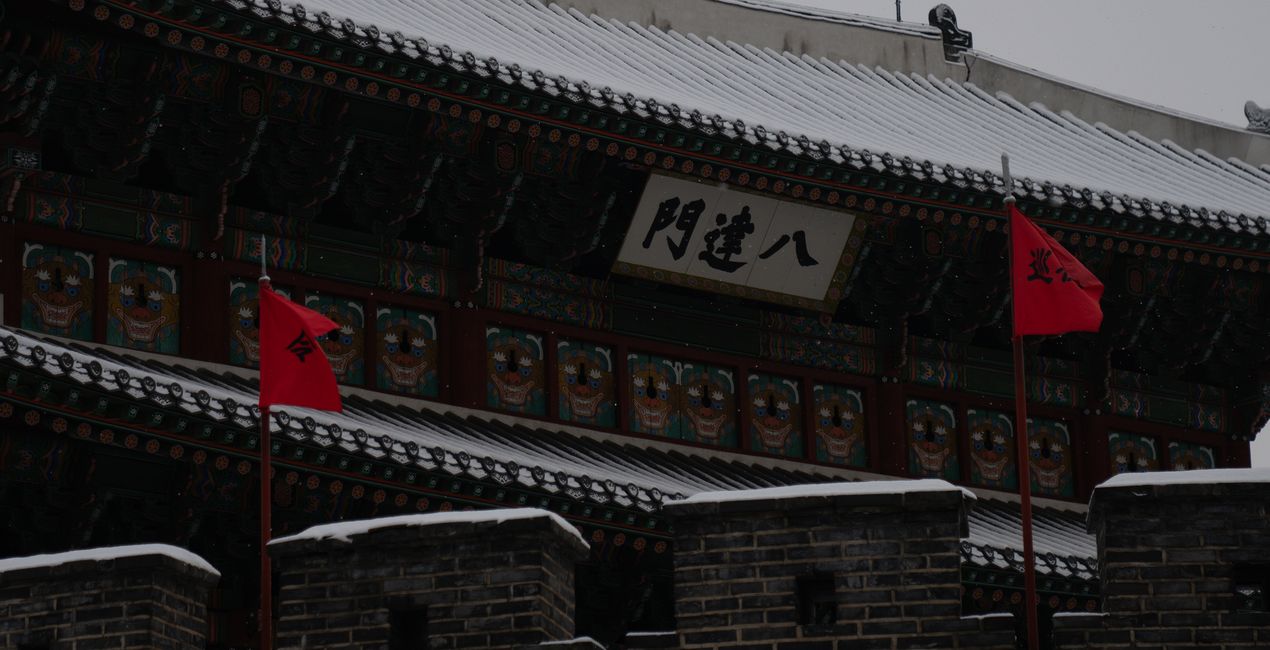
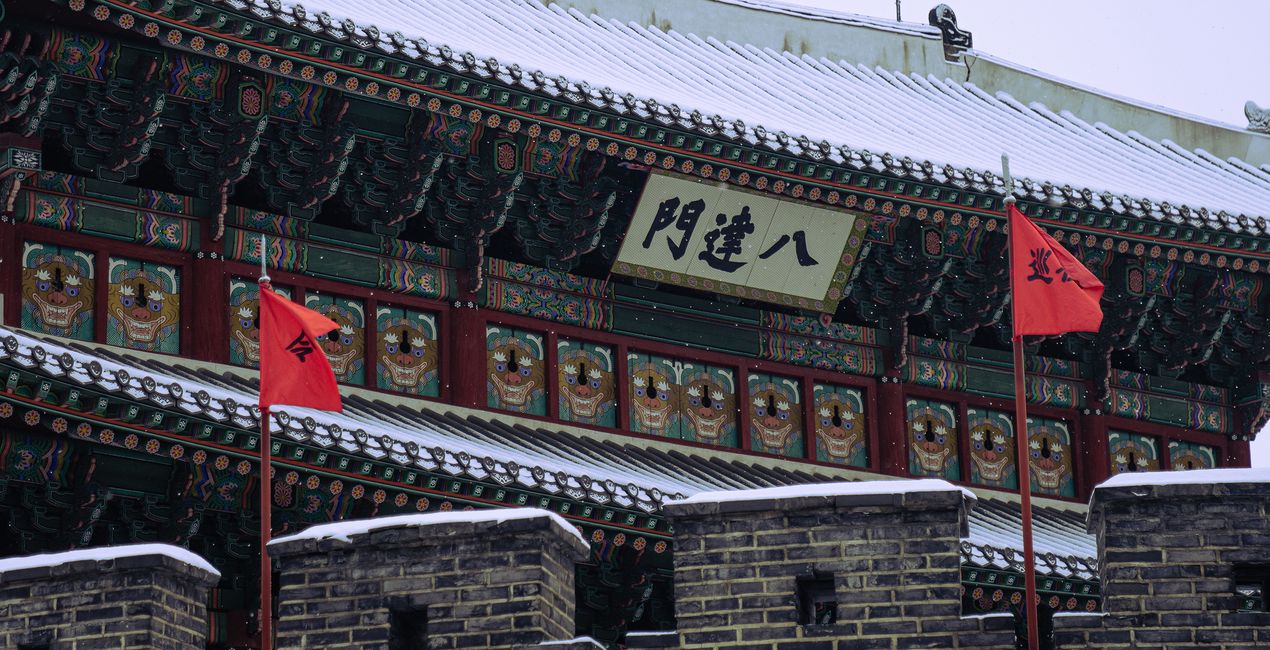
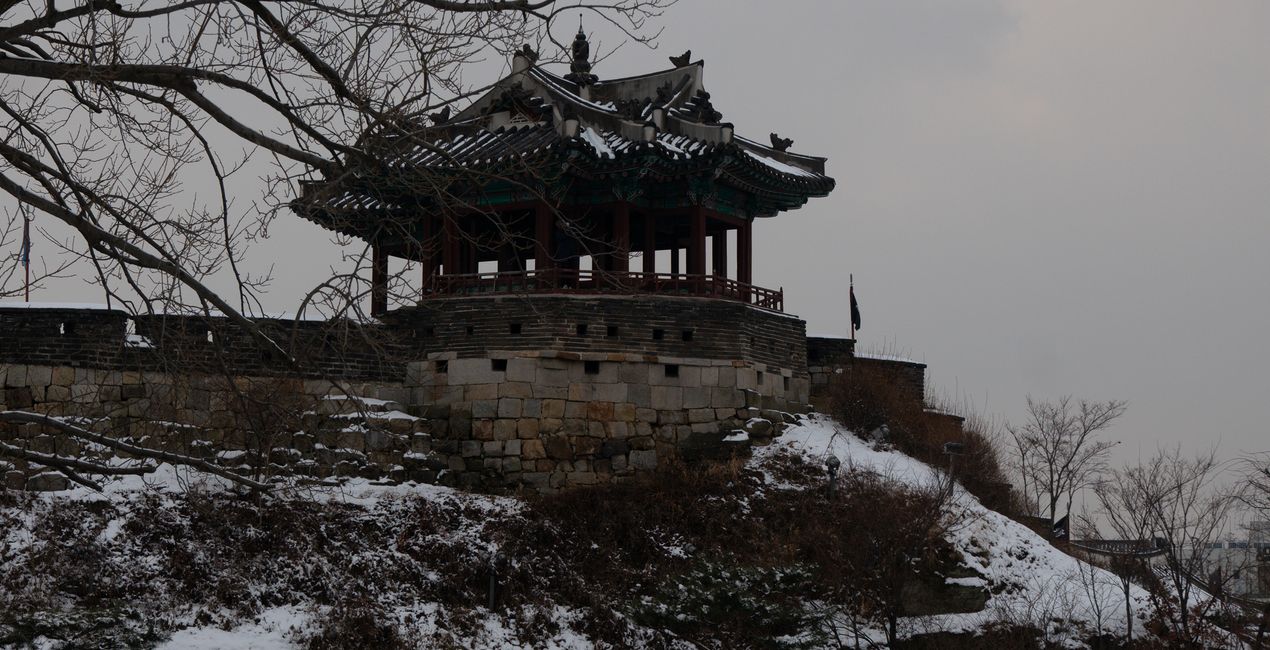
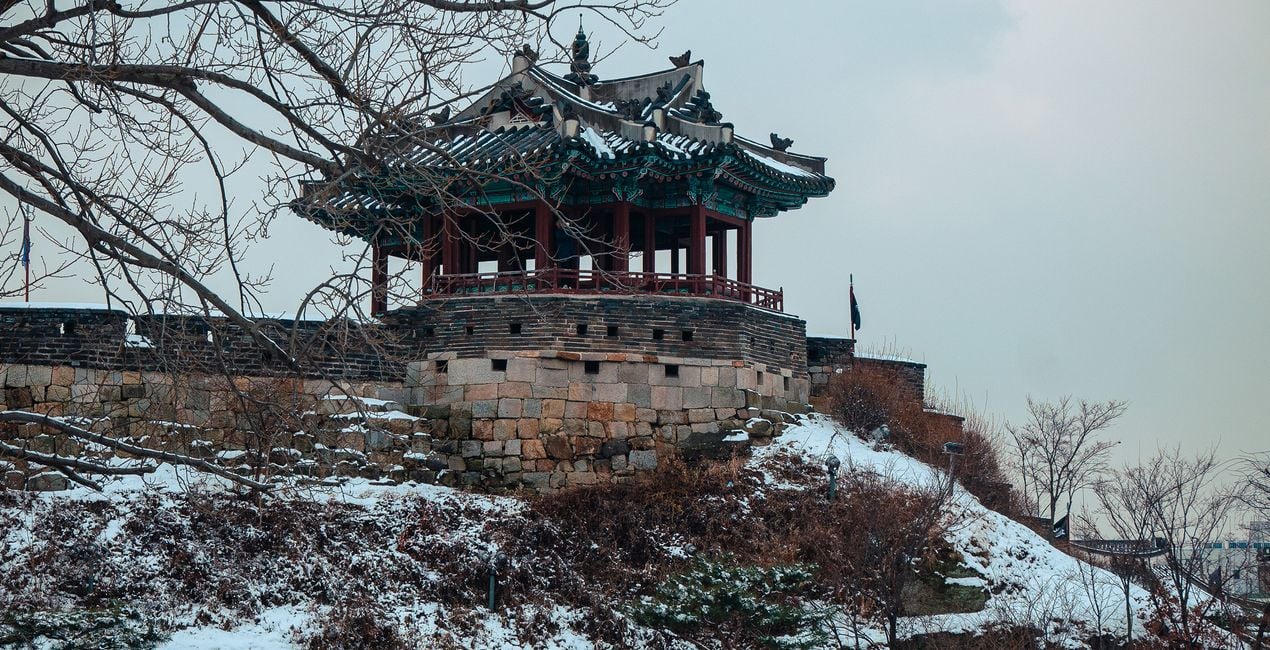
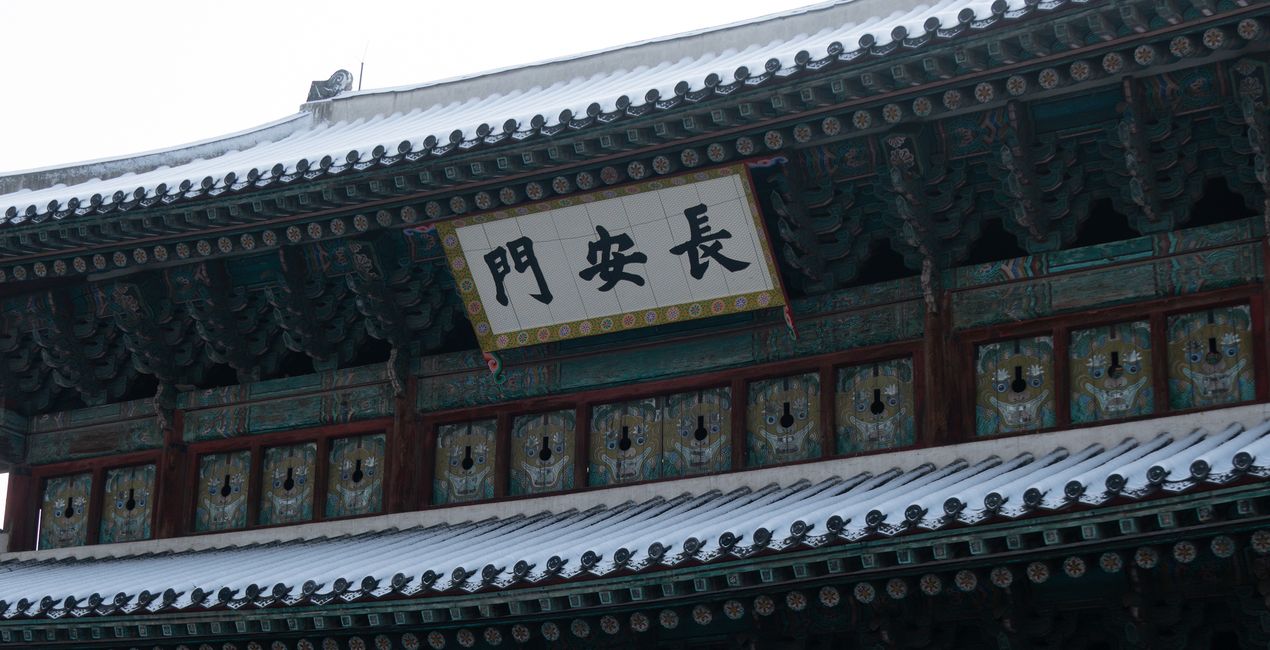
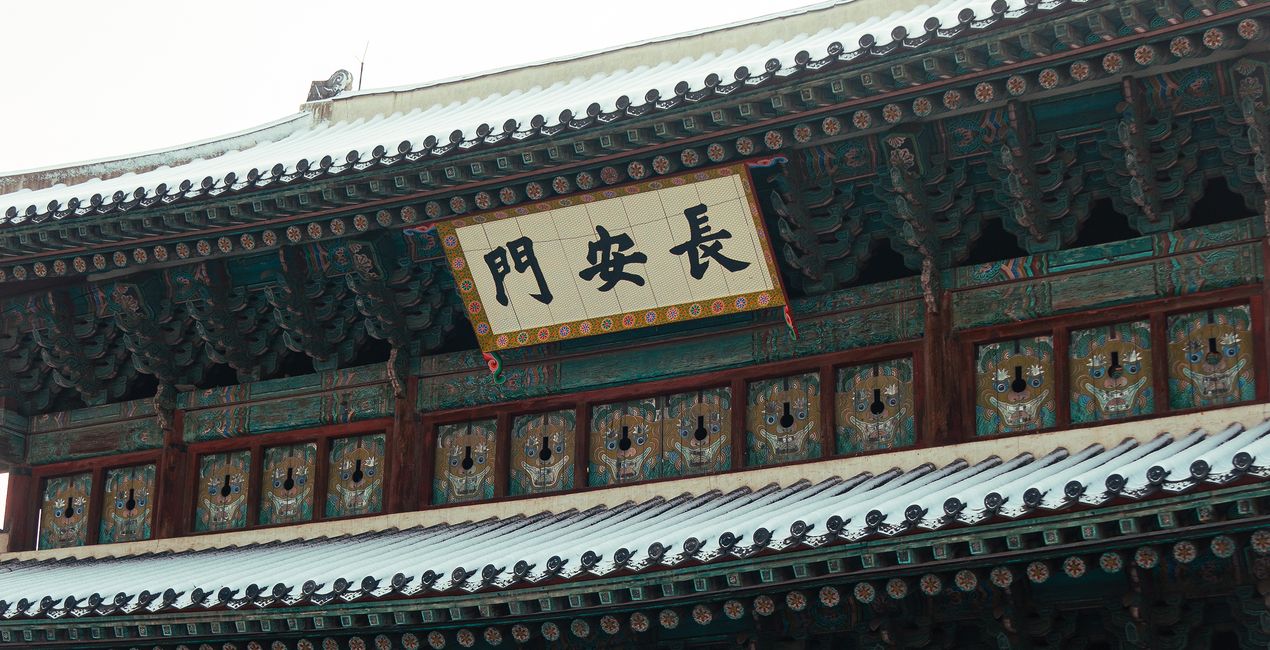
Using RAW files you will easily practice retouching tips and learn how to get photos like these.
 >
>
 >
>
 >
>
 >
>
 >
>
 >
>
The ‘Snow Zen’ pack is not just about adding a touch of winter to your photos; it’s about transforming them into mesmerizing artworks that evoke the true feeling of a winter’s day. With Presets tailored to various lighting conditions and snowscapes, you can effortlessly convey the chilly haze of a snowy morning, the stark contrast of shadows on bright snow, or the warm tones of a winter sunset.
These Presets are designed to enhance the texture and depth of the snow, ensuring your photos capture the full range of winter’s palette. Perfect both for professional photographers and hobbyists, the ‘Snow Zen’ Preset pack will elevate your snowy day photography, making each image a breathtaking depiction of winter’s unique charm.
You'll find 10 Presets in this Pack:
Bleak Chill: Perfect for capturing the stark, moody atmosphere of a cold, overcast winter day.
Crystal Veil: Enhances the delicate, shimmering beauty of ice crystals and frost in the light.
Frosty Blue: Brings out cool, blue tones, emphasizing the icy crispness of a winter scene.
Frosty Dawn: Captures the serene beauty of early winter mornings with soft, muted colors.
Snowy Solace: Portrays the peaceful, solitary aspect of snow-covered landscapes, offering a sense of quiet retreat.
Winter Fortress: Accentuates the strength and majesty of snow-clad structures and rugged landscapes.
Winter Gloom: Ideal for creating a somber, introspective mood in grey, cloudy winter settings.
Winter Glow: Adds a warm, golden hue to winter scenes, mimicking the soft light of a low winter sun.
Winter Hush: Emphasizes the quiet, undisturbed tranquility of a landscape blanketed in snow.
Wintry Calm: Conveys the still, serene ambiance of a calm winter day with gentle light and soft tones.
Street and Fashion photographer
Steve Roe is a photographer based in Seoul, originally from the UK, who has made a name for himself with his neon street photography. He captures the vibrant essence of cyberpunk culture, infusing his work with a futuristic and captivating allure.
He is also known for his experimental approach to portraiture, employing neon lights and fractal lenses to craft imaginative and unique images that transport subjects to a realm of intriguing futurism.
His talents have not gone unnoticed, with notable brands like Apple and Prada seeking his distinctive style for their campaigns. Steve's work has also received recognition from major platforms such as the BBC and National Geographic, while his photographs have graced the covers of iconic cyberpunk novels like The Neuromancer Trilogy by William Gibson.
With an eye for neon aesthetics and a passion for capturing the essence of Asia's neon-lit cities, Steve Roe continues to captivate audiences, blurring the lines between reality and the dazzling realm of neon-lit dreams.
If you have any questions about the product, you can contact the 24/7 support team. Just follow this link.
To purchase Snow Zen, follow these steps:
1. Open Skylum’s Marketplace.
2. Go to the preferable tab where Snow Zen is listed. Click on it and add it to your cart.
3. Proceed to your cart. Here, complete the purchase process for Snow Zen.
4. After the purchase, you will receive a fulfillment email with the download link for Snow Zen. Also, you can find the new item in your Skylum account, My Add-ons tab.
Detailed instructions on installing the Snow Zen will be sent to you in the fulfillment email alongside the download link.
Besides, you can install the purchased item directly in Luminar Neo: go to Extras > Marketplace, Select the Product category, find the purchased item, and click Install.
It’s pretty easy! First, download the pack from your Account > My Add-ons. Then follow the installation instructions inside the downloaded folder. Each asset type may have its own installation steps, so make sure to check the guide included.
Don't worry. All purchased items, including Snow Zen, are stored in the 'My Add-ons' tab of your Skylum account, allowing for easy redownload and use.
Generally, most items are compatible with Luminar Neo. But to ensure Snow Zen is compatible with your software, review its specifications before downloading or purchasing. Look for the 'Compatibility' section at the right of the Snow Zen page, where all compatible products are listed.
Don’t leave just yet. Here’s an exclusive discount code for you. Use it within the next 15 minutes to get an extra 10% off at checkout. Copy the code below and complete your purchase.
15 m : 00 s