Applied


Underwater
Save $201 $ 16 .15 $ 19 .00

Enhance the images from your last seaside vacation. Create stunning underwater scenes thanks to these 10 Templates that enhance the shades of blue, add saturation, increase brightness, and let you do more with your photos.
What is included
10 Templates. Compatible with JPEG and RAW images.

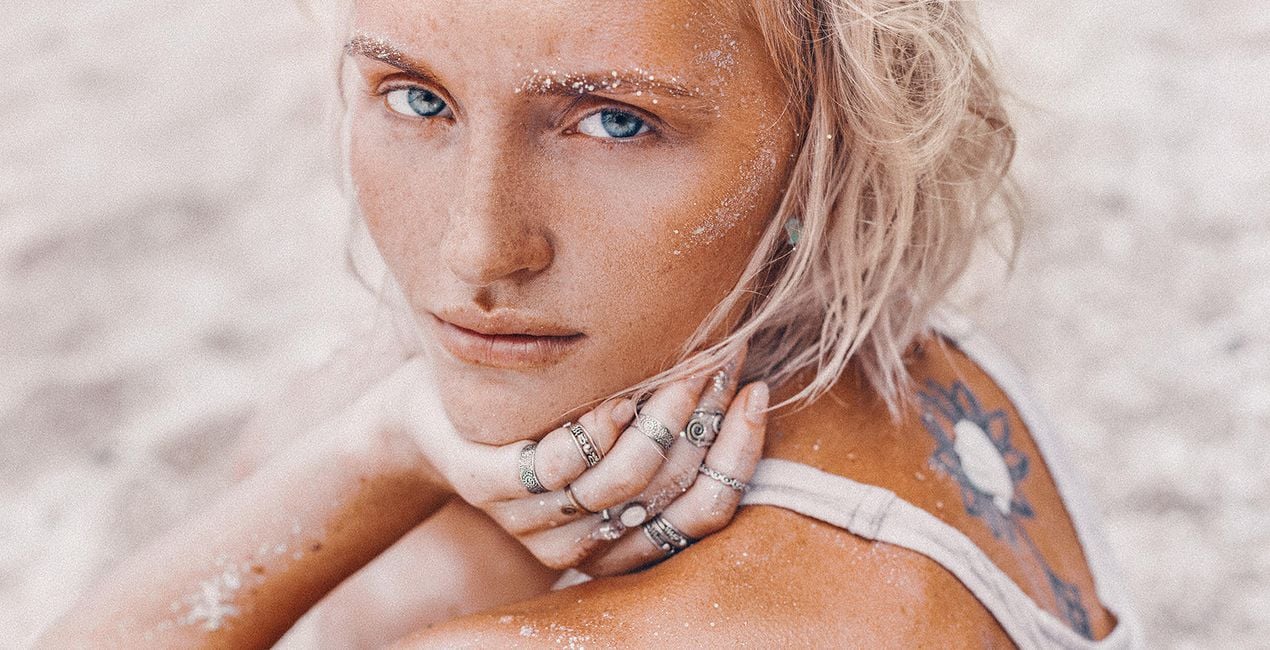
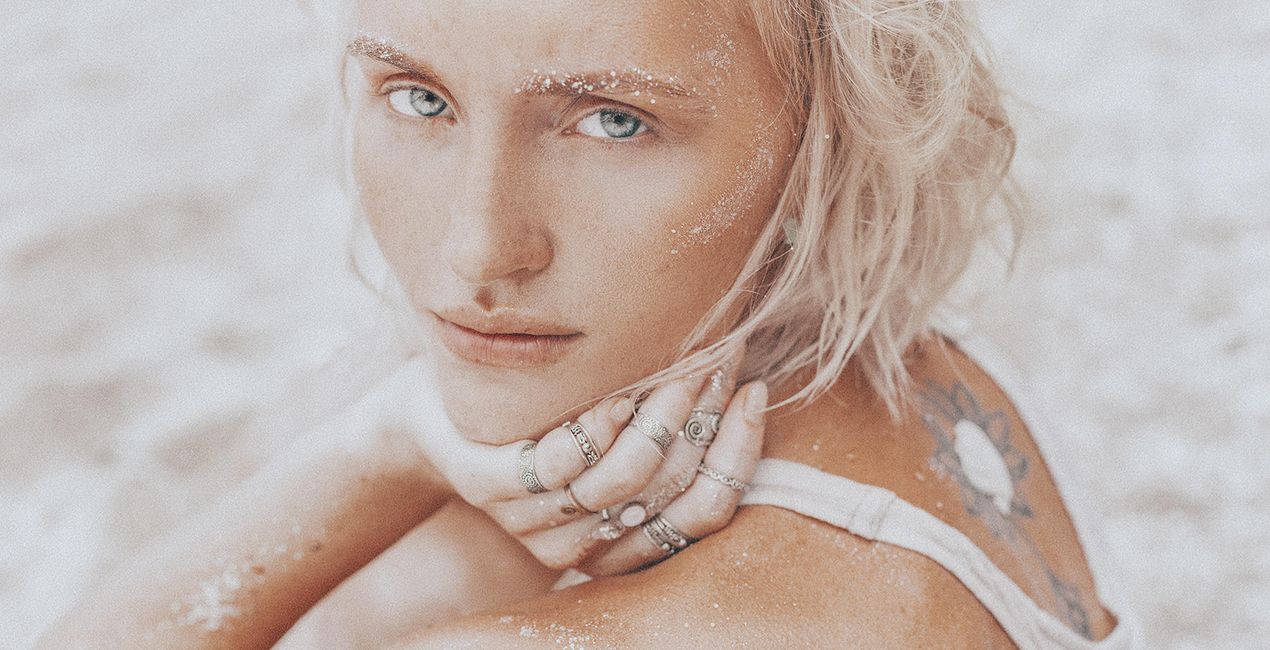
Using RAW files you will easily practice retouching tips and learn how to get photos like these.

 >
>
 >
>
 >
>
 >
>
 >
>

 >
>
 >
>
 >
>

 >
>
It’s hard to recreate that mesmerizing feeling of diving into the deep blue ocean and capturing the stunning underwater world in its true colors.
These 10 specialized Templates can help you channel the feeling of the deep sea and create impressive photos no matter your subject, whether it’s splendid coral reefs or the deep abyss.
Submerge yourself in creativity with deep sea blues, cinematic effects, monochrome Templates, and more to create unforgettable underwater images.
What you’ll find in this pack (10 Templates):
Colorful Reef: Craving rich colors in your photo? Try this Template without toning but with enhanced contrast and sharpness.
Water Blues: Enhance the shades of blue in your underwater photo and pull the focus on the water.
Abyss: Channel a cinematic atmosphere for the feel of underwater filming.
Turquoise: This Template brings a turquoise shade to the water and accents skin tones.
Tone Blue: Rescue overly light blue photos from your underwater shoot. This Template enhances the blues in your image, making water look more natural and creating a stunning effect.
Cinematic Deep: This cinematic atmospheric Template makes your photos look like part of a deep sea documentary.
Exotic Ocean: This bright saturated Template is perfect for photos of varied and exotic flora and fauna.
Film Look: Imitate the effect of expired film for a unique and experimental look.
Blue Monochrome: Use this Template to create monochrome toning with a slightly blue shade.
Gentle Breeze: With a soft atmospheric effect thanks to light contrast and light saturation, this Template is perfect for creating gentle and comforting photos.
Keep in mind that a Template’s default effect might be too strong for your photo.
If it is, simply bring it back a bit with the Amount slider.
Don’t forget to share your results! Use the hashtag #madewithluminar on social media so the Skylum Team can take a look at your work!
Photographers, colorists & retouchers
The Skylum team works with hundreds of professional photographers and retouchers to bring you Templates that top photographers use to create their masterpieces. The Skylum AI Lab analyzes the photos and workflows of photographers and creates Templates that are accessible to everyone and that take advantage of the advanced technology under the hood of LuminarAI. Our mission is to cut the time and effort it takes to make a striking photo and allow everyone to enjoy photo editing and photography.
If you have any questions about the product, you can contact the 24/7 support team. Just follow this link.
To purchase Selfie, follow these steps:
1. Open Skylum’s Marketplace.
2. Go to the preferable tab where Selfie is listed. Click on it and add it to your cart.
3. Proceed to your cart. Here, complete the purchase process for Selfie.
4. After the purchase, you will receive a fulfillment email with the download link for Selfie. Also, you can find the new item in your Skylum account, My Add-ons tab.
Detailed instructions on installing the Selfie will be sent to you in the fulfillment email alongside the download link.
Besides, you can install the purchased item directly in Luminar Neo: go to Extras > Marketplace, Select the Product category, find the purchased item, and click Install.
It’s pretty easy! Go to the Presets tab, then select Purchased. Your installed preset will be here.
Don't worry. All purchased items, including Selfie, are stored in the 'My Add-ons' tab of your Skylum account, allowing for easy redownload and use.
Generally, most items are compatible with Luminar Neo. But to ensure Selfie is compatible with your software, review its specifications before downloading or purchasing. Look for the 'Compatibility' section at the right of the Selfie page, where all compatible products are listed.
Don’t leave just yet. Here’s an exclusive discount code for you. Use it within the next 15 minutes to get an extra 10% off at checkout. Copy the code below and complete your purchase.
15 m : 00 s